
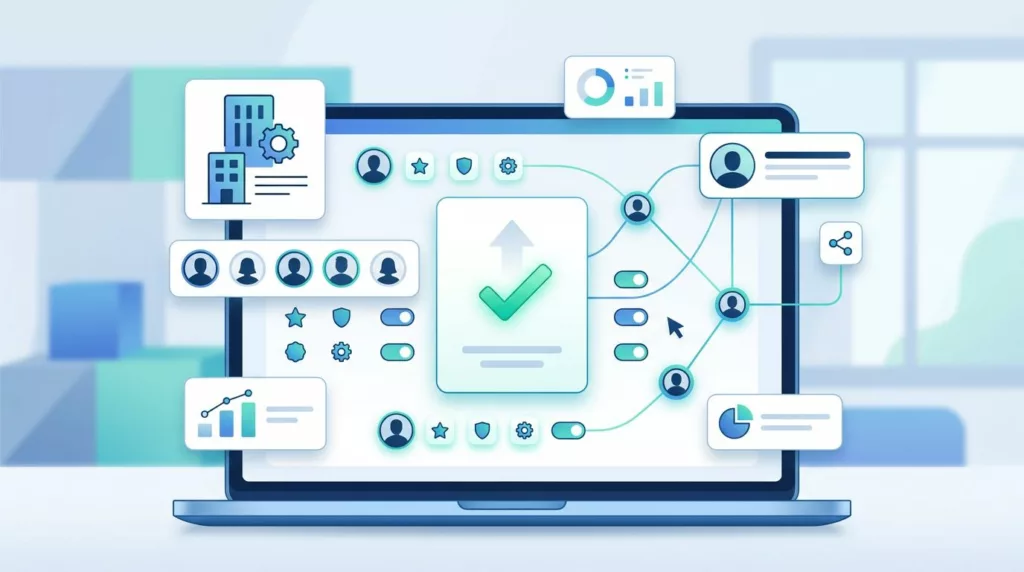
A buyer shouldn’t need a support ticket to add a colleague to a company account. Yet many B2B portals hide invitations behind unclear settings, vague roles, or approval rules that only administrators understand.
Good B2B account invitations explain who is being added, what they can access, and which actions they can take. They also handle existing accounts, restricted domains, duplicate invites, and expired links without leaving users stuck. The right experience starts with a clear account model.
Key Takeaways
- Put colleague invitations where account administrators expect to find them, usually under team or account settings.
- Explain account roles separately from purchasing approvals and transaction permissions.
- Show the invitee’s organization, location, role, and access before they accept.
- Design clear recovery paths for duplicate, expired, revoked, or restricted invitations.
- Measure successful acceptance, role corrections, and support requests after launch.
Why B2B account invitations need more context
Consumer invitations often mean “join my team.” B2B invitations carry more responsibility because one customer account can include departments, branches, legal entities, payment terms, and approval chains.
The invitation must answer practical questions before the recipient accepts:
- Which company account am I joining?
- Will I see the parent company or one branch?
- Can I place orders, approve purchases, or view invoices?
- Does accepting this invitation change my existing account?
- Who can remove or change my access later?
A generic email that says “You’ve been invited” leaves too much room for doubt. The recipient may ignore it, contact the sender, or create a separate account with the same email address.
The account administrator also needs confidence. They should know whether the invite was sent, whether it remains pending, and what access it grants. A useful confirmation might say, “Invitation sent to sam.lee@buyerco.com. Sam will join BuyerCo, West Region, as a Buyer.”
The page layout matters as well. Administrators often scan settings quickly, so place the account name, team list, invitation action, and pending status near one another. A discussion of the F-pattern in UX design offers useful context for placing high-value information where users tend to look first.
Avoid hiding invitations under billing, checkout, or general profile settings. Those areas suggest personal account management, not company access.
Separate account roles from purchasing permissions
The most common design mistake is treating a role as if it controls every action a user can take. In B2B ecommerce, account access and purchasing authority are separate systems.
An account role might control whether someone can manage users, view invoices, edit addresses, or access order history. Purchasing permissions decide whether an order needs approval, which budget applies, and what value a person can submit without review.
For example, a user could have:
- Buyer access to create carts and place standard orders.
- An approval limit of $5,000.
- No access to invoices or payment methods.
- Permission to order only for one branch.
Another user may be a finance viewer who can see invoices but cannot create a cart. A company administrator may manage users without being allowed to approve purchases.
Keep these concepts separate in the invitation interface. Instead of one oversized “Role” dropdown, use clear sections:
Account access
- Company admin
- Buyer
- Finance viewer
- Address manager
Purchasing access
- Can create carts
- Can submit orders
- Approval limit
- Permitted locations or cost centers
Don’t present an approval limit as a role. “Approver” describes a responsibility, but it doesn’t tell users which orders they can approve or under what conditions.
A role summary beside the form can prevent mistakes:
Buyer, West Region. Can create and submit orders under the account’s approval policy. Can’t manage users or payment settings.
Use the same labels in the invitation email, acceptance page, team directory, and audit log. Consistent wording helps an administrator spot an incorrect assignment later. Ecom Design Pro’s guidance on B2B ecommerce permission architecture covers the wider relationship between account structure, user access, and approval authority.
The system should also support multiple assignments when the business needs them. A regional manager might manage users for one branch and approve orders for another. If the product can’t support that combination, state the restriction before the invitation is sent.
Design the invitation flow around the invitee
An invitation flow has two users: the person sending access and the person receiving it. Both need enough information to act without asking the other person for help.
Start with a visible “Invite colleague” button on the account’s team page. The form should ask only for information that affects access:
- Work email address
- Name, if needed for the directory
- Account role
- Location, branch, or department
- Purchasing permissions, if the sender can assign them
- Optional personal message
Show the selected company and account number near the form. If the account has multiple legal entities, include the entity name and location. A recipient should never accept an invitation without knowing which customer record they will enter.
Use plain interface copy. For example:
Invite a colleague to Northstar Industrial, US West
They’ll receive access to the West Region account.
When the sender chooses an elevated role, explain the effect next to the control. “Account admin can invite users, change account settings, and remove access” is more useful than a tooltip that only says “Admin permissions.”
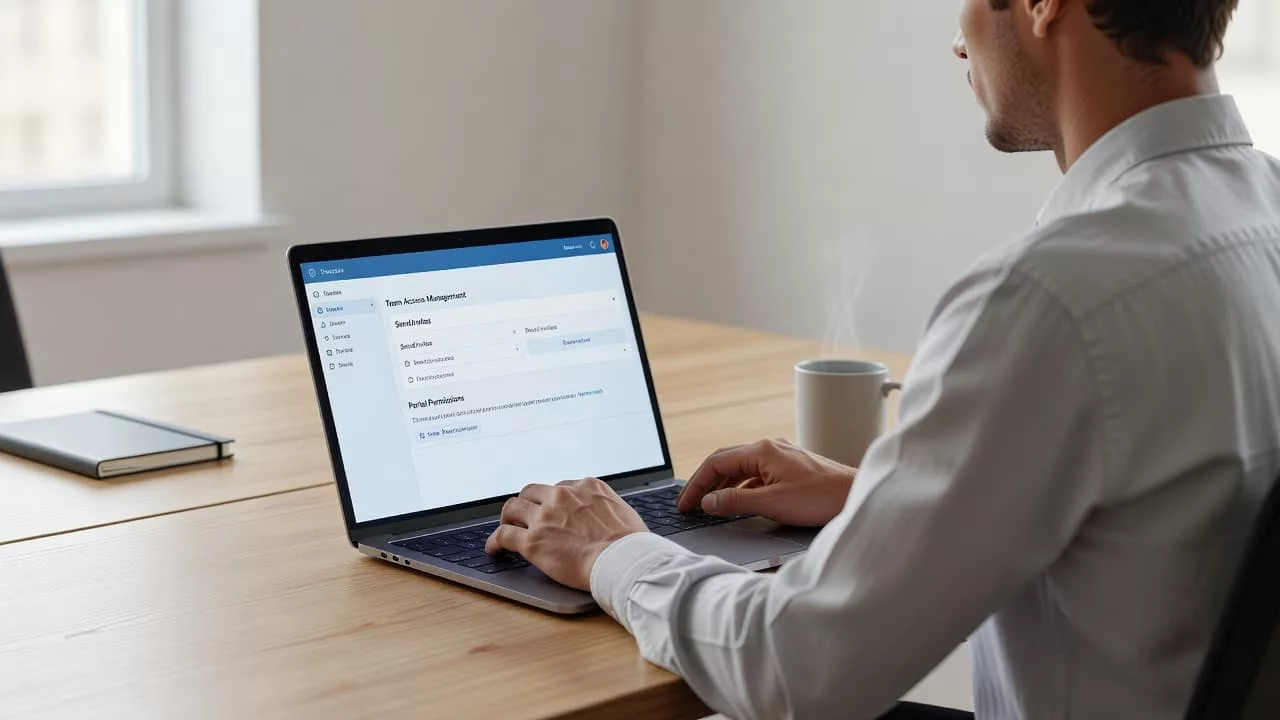
The confirmation screen should show the email, role, account, and invitation status. Give the sender two clear actions: copy the invitation link, or resend the email. Avoid making “Done” the only next step when the sender may need to share the invitation through another channel.
The email itself should include:
- The inviter’s name and company
- The account or organization name
- The assigned role
- The invitation expiry date
- A single acceptance button
- A way to report an unexpected invitation
Keep sensitive details out of the email. Don’t include customer pricing, credit limits, invoice balances, or private order information before authentication.
The acceptance page should provide a clear path for both new and existing users. A new user can create login credentials. An existing user should sign in and connect the invitation to their current profile. The page might say:
Already have an account? Sign in with the email that received this invitation. Your existing profile won’t be replaced.
That message prevents duplicate profiles and reduces fear around accepting access. Interface patterns for B2B product design can also help teams compare how business portals communicate access, security, and account states.
Plan for invitation edge cases before launch
Invitation errors are part of the core journey, not rare exceptions. Product and engineering teams should define each state before building the happy path.
The invitee already has an account
Match the invitation to the authenticated profile after sign-in. If the email differs from the profile email, ask the user to verify the connection rather than silently adding access.
Use copy such as:
This email already has an account. Sign in to accept access to Northstar Industrial.
Never force an existing customer to create a second login. Duplicate profiles can split order history, saved addresses, tax details, and purchasing permissions.
The email domain is restricted
Many organizations allow only approved business domains, while others need exceptions for contractors, subsidiaries, or buying agencies. Show the rule before submission:
Invitations are limited to @northstar.com addresses. Contact your account administrator if your organization uses another domain.
If an admin can request an exception, provide that path. Don’t reject a valid contractor with a vague “Something went wrong” message.
A duplicate invitation is pending
The team list should show a pending invitation with the recipient’s email, assigned role, sender, and expiration date. When someone tries to send another invitation, explain the existing state:
An invitation is already pending for sam.lee@buyerco.com. Resend it or change the email address.
A resend action should refresh the expiry only if the product’s security policy permits it. Record the action in the audit history.
The role needs to change
Let an authorized administrator edit a pending invitation without deleting and recreating it. Show the new role in the confirmation, and notify the recipient if the change affects access.
For an accepted user, role changes need stronger feedback:
Sam Lee’s account role changed from Buyer to Finance viewer.
If purchasing permissions also changed, display those separately. A user may lose the ability to submit orders while retaining order-history access.
The invitation is expired or revoked
Expired links should explain what happened and what to do next:
This invitation expired on July 18, 2026. Ask your company administrator to send a new invitation.
A revoked link needs similar clarity:
This invitation is no longer available. Contact the person who invited you if you still need access.
Don’t expose account details on an expired or revoked page. Offer a safe route back to sign-in or support.
The recipient belongs to another organization
An email address may already belong to a different customer account. Don’t silently move the user between organizations. Ask them to sign in, review the proposed access, and confirm which account they want to join.
If the platform supports multiple organizations, show the membership change plainly. Users should understand whether they are adding access or switching their active company context.
Test the experience with real account scenarios
A test that covers only one admin inviting one buyer won’t expose the problems that B2B teams face. Build test cases around account structure, permissions, and identity states.
Run usability sessions with account admins, buyers, finance users, and people who already have accounts. Ask participants to complete tasks such as inviting a buyer for one branch, assigning an approval limit, and removing access after the person leaves the company.
Then test system behavior for:
- Duplicate email addresses and pending invitations
- Existing users with different login emails
- Unauthorized attempts to invite colleagues
- Restricted and unverified domains
- Expired links and revoked access
- Changes to roles while an order awaits approval
- Users connected to multiple organizations
- Invitation email delivery failures
Track more than invitation completion. Useful measures include time to send, acceptance rate, resend frequency, role corrections, failed sign-ins, and support contacts that mention access. A high acceptance rate can still hide serious problems if administrators repeatedly fix permissions afterward.
Audit the team page as part of the wider B2B customer portal checklist. Check whether users can identify their account, understand their access, and see which data belongs to their branch or legal entity.
Security and accessibility need equal attention. Use expiring, single-use tokens where appropriate. Protect invitation endpoints from account enumeration. Make focus states visible, label errors next to their fields, and provide status updates that screen readers can detect. Keyboard users should be able to complete the entire flow without opening a menu with a pointer.
Conclusion
A strong B2B invitation flow gives every participant the same answer: who is joining, which account they are joining, and what they can do there. Account roles should describe portal access, while purchasing rules should control orders and approvals separately.
Clear states for existing users, restricted domains, duplicate invites, role changes, and revoked links turn common failures into recoverable actions. When B2B account invitations are designed as part of the account model rather than as a standalone email feature, teams gain safer access management and buyers spend less time waiting for help.