
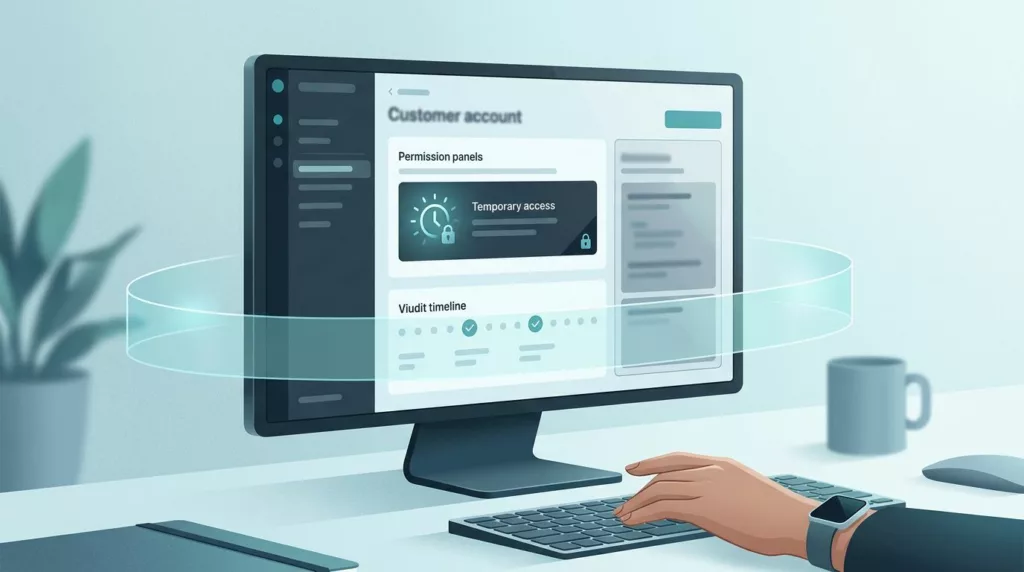
A buyer calls because a contract price is missing, an approval is stuck, or an order fails at checkout. The support agent needs to see the same account state without asking for a password or guessing what the buyer sees.
B2B ecommerce user impersonation gives sales support teams that access, but it also creates a serious trust boundary. A poorly designed session can expose private data, bypass purchasing controls, or leave everyone unsure who changed an order.
The right experience makes access temporary, visible, limited, and easy to audit. It helps agents solve problems without turning impersonation into a substitute for proper permissions.
Why sales support teams need controlled impersonation
B2B buying rarely belongs to one person. A company may have buyers, approvers, finance users, location managers, and account administrators. Each person can see different prices, payment terms, order histories, tax settings, or approval actions.
That structure creates a practical support problem. An agent looking at an internal admin view may see the account, but not the buyer’s actual experience. A checkout issue can depend on the buyer’s role, selected shipping location, purchasing limit, or assigned catalog.
User impersonation lets an authorized agent reproduce that context. The agent can review a failed order, locate an invoice, confirm a quote, or place an approved order on behalf of a buyer. The buyer doesn’t need to share credentials, and the support team gets a clearer path to resolution.
A useful ecommerce impersonation support feature should restrict what an agent can do during the session. That restriction matters because visibility into an account doesn’t automatically justify changing it.
Support impersonation should be treated as a privileged workflow, not a convenience button.
The feature should also sit beside, not replace, account permissions. Your platform still needs role-based access control, authentication, approval rules, and separation between support, finance, and account administration. The impersonation layer adds temporary context for a specific support task.
For example, an agent might view a buyer’s cart and submit an order after receiving approval. The same agent may be blocked from changing the buyer’s password, adding a new administrator, editing bank details, or approving a purchase outside the buyer’s authority.
Designing B2B ecommerce user impersonation around consent
The entry point shapes how safely the feature gets used. Place it inside the support or account-management workflow, not beside unrestricted administrative actions. Before the session starts, show the target company, user, role, and account status in plain language.
Require a reason for access. A short choice such as “Troubleshoot checkout,” “Place approved order,” or “Review invoice issue” creates useful context. Add an optional case or ticket number, then store both values in the audit record.
The initiating agent should confirm the access scope before continuing. A simple confirmation panel can state:
- The customer account and individual user the agent will view.
- The actions allowed during the session.
- The actions that remain blocked.
- The session timeout and automatic exit behavior.
- Whether the buyer will receive a notification.
An explicit authorization step is appropriate for higher-risk work. For example, placing an order may require a buyer’s written approval in the support case, while viewing a cart to reproduce an error may not. The policy should match the risk instead of forcing the same approval process onto every request.
Role restrictions are also important. Only designated support or sales operations roles should receive impersonation access. Even then, use least privilege. A read-only troubleshooting role needs less access than an agent who submits approved orders.
Teams that already review account permissions UX can connect impersonation rules to their existing role model. The buyer’s permissions should remain visible during the session, including purchasing limits, approval rights, and location access.
Keep agent and buyer views visibly separate
Once impersonation begins, the interface must make the active identity impossible to miss. Use a persistent banner, a strong color treatment, or a dedicated session bar that stays visible while the agent moves through the store.
Show both identities:
- “You are signed in as Maria Chen for Northstar Components.”
- The agent’s own name and support role.
- The session reason and case reference.
- The time remaining before automatic exit.
Avoid wording that suggests the agent has become the customer. The agent is still the agent, and the customer account is only the current working context. This distinction helps prevent accidental actions and gives the buyer a clear explanation if they receive a notification.

The exit control should remain available in the header, not hidden in a profile menu. After the agent selects “End session,” return them to their own account and confirm that impersonation has ended. If the browser closes or the network fails, the server should still expire the session automatically.
Build time-limited sessions and immutable logs
A safe impersonation session has a clear beginning and end. Set a short maximum duration and an idle timeout. The system should close inactive sessions without relying on the agent to remember.
Record a distinct start event and end event. An immutable audit log should prevent agents from editing or deleting the history later. If a support manager needs to correct a case reference, the system should append a correction rather than rewrite the original record.
Every log entry needs dual identity. Store who initiated the session and which customer user or account the session represented. A user ID alone isn’t enough for an investigation because it can hide the relationship between the agent and the buyer.
At minimum, capture:
- Agent identity, customer identity, role, and company account.
- Start time, end time, duration, source IP, and device details.
- Reason, ticket number, authorization record, and any step-up verification.
- Pages viewed and actions taken during the session.
- Before-and-after values for changes to orders, users, addresses, or account settings.
- Failed attempts to perform blocked actions.
The event names should also distinguish access from activity. “Impersonation started” tells you that the session opened. “Shipping address changed” tells you what happened inside it. Together, these records let a manager answer who accessed the account, why they accessed it, and what they changed.
Monitor sessions that remain open too long. Security guidance for B2B software commonly recommends alerting when an impersonation session exceeds two hours. Your own threshold should reflect the work involved, but an open session with no business reason deserves review.
A B2B ecommerce account portal audit checklist can help teams review access control, billing data, integrations, and account workflows together. Impersonation shouldn’t receive a separate security review while the rest of the portal goes untested.
Mask sensitive data and block risky actions
Agents often need enough information to solve a problem, not unrestricted access to every field. Mask payment details, authentication secrets, tax identifiers, personal phone numbers, and other data that doesn’t support the task.
Use action-level controls instead of relying only on the account role. A support agent may view an invoice but shouldn’t see a full payment method. They may update a delivery note but shouldn’t change payout information.
High-risk actions should be blocked by default during impersonation. These often include password resets, MFA changes, administrator creation, permission changes, refunds, payout updates, and payment method edits. If the business must allow one of these actions, require a separate authorization step and record the reason.
The same principle applies to external communication. If an agent sends an order confirmation, quote, or invoice, show that the message will go to the buyer before sending it. Where possible, label the action as performed by the agent on behalf of the customer.
Test three sales support workflows before launch
A feature can look clear in a design file and still fail during a live account issue. Test the full workflow with real roles, permissions, notifications, and audit events.
| Scenario | Useful agent access | Controls to verify |
|---|---|---|
| Placing an order for a buyer | View catalog, contract pricing, cart, shipping, and checkout | Buyer approval, purchasing limits, order attribution, confirmation recipient |
| Troubleshooting an account issue | View the buyer’s role, order history, invoices, and error state | Read-only defaults, masked data, session timeout, visible customer context |
| Managing a complex organization | Switch between authorized users or locations | Scope limits, approval hierarchy, account boundaries, complete audit trail |
When placing an order, show the buyer’s available pricing and approval status before checkout. If the order exceeds a limit, the agent should see the same approval requirement as the buyer. The agent can prepare the cart, but the platform should not silently grant authority that the buyer doesn’t have.
For account troubleshooting, reproduce the issue without changing data first. A read-only mode is useful here. If a change is necessary, show the field, the proposed value, and the reason before saving it.
Complex organizations need extra care. A parent company may own several locations with different shipping addresses, catalogs, and buyers. The session should identify the selected organization and location on every relevant screen. Don’t let an agent move into a related account through a convenient link without a new authorization check.
Technical details can also affect the experience. Login-as-customer links, API tokens, and session redirects need consistent handling across the storefront and admin area. BigCommerce’s customer impersonation API support discussion illustrates how a seemingly simple login-as-customer flow can run into security-token and routing issues.
A short sales support user impersonation walkthrough can help stakeholders align on the workflow, but product teams still need to test their own permission model and audit behavior.
A concise UX checklist for implementation
Before release, confirm that the design and backend enforce the same rules:
- Only approved roles can start an impersonation session.
- The agent selects a reason and, where needed, a case or authorization reference.
- The target company, user, role, and location are clear before access begins.
- A persistent banner shows both the agent and customer identities.
- The session has a maximum duration and idle timeout.
- “End session” remains visible and works from every page.
- Read-only access is the default for troubleshooting.
- Sensitive fields are masked and high-risk actions are blocked.
- Buyer approvals and spending limits remain active.
- Every action records both identities and a precise timestamp.
- Logs are immutable and include before-and-after values for changes.
- Buyers receive appropriate notifications about agent access.
- Session closure is recorded even after a timeout or connection failure.
- QA tests failed authorization, expired sessions, multiple locations, and shared accounts.
Product analytics should measure more than session volume. Track time to resolution, repeat contacts, blocked-action attempts, accidental exits, and cases where agents had to request broader access. Those signals reveal whether the experience is helping support teams without weakening account controls.
Conclusion
B2B ecommerce user impersonation works when it gives sales support the right customer context without giving away unrestricted authority. Clear identity labels, least-privilege roles, explicit authorization, masked data, blocked high-risk actions, and immutable logs turn a risky shortcut into a controlled support workflow.
The strongest design makes every session easy to start for an approved task and easy to stop when that task ends. When agents can place approved orders, troubleshoot buyer-specific issues, and manage organizational accounts with a visible audit trail, customers get faster help without losing control of their accounts.