
A VAT (Value Added Tax) field can look small, but it changes the tax logic behind the order in B2B transactions. If you place it badly, business buyers hesitate, consumer buyers get confused, and your support team inherits a mess.
That is why VAT number UX matters so much in the checkout experience for cross-border buyers. The right field timing, copy, and validation flow can make the difference between a clean B2B order and an abandoned cart.
If your checkout already uses a multi-step checkout UX for complex carts, the VAT step should sit where buyers expect tax decisions, not where they are still deciding what to buy.
Key Takeaways
- Time the VAT field after the buyer signals business intent, using a simple toggle for mixed B2B/B2C stores to avoid confusion and keep the form calm.
- Use clear labels like “VAT number” with short helper text that explains validation and tax outcomes, placed near company name and billing fields.
- Implement fast validation with four states (idle, checking, valid, invalid), updating tax totals immediately and providing visible fallbacks.
- Show tax changes and business status clearly in order summaries before payment to build trust and reduce support tickets.
- Save validated VAT numbers to customer accounts for repeat B2B buyers, ensuring reuse without re-entry.
Why the VAT field needs careful timing
Good VAT registration number UX starts before anyone types a number. In EU and UK B2B flows, the field is not just a form input; it is a tax decision that determines net vs gross pricing based on the buyer’s status.
As of May 2026, sellers still need to verify a VAT number before treating an order as B2B. If the number fails validation, the safe fallback is usually consumer tax treatment, which disrupts the automated tax calculation and means the checkout has to explain the change clearly. That is also why the field should not show up for every buyer by default, particularly for international users.
The best timing depends on the flow. If you sell only to businesses, the field can appear early. If you sell to both businesses and consumers, make the buyer type explicit first. That keeps the form honest and reduces guesswork.
A good rule is simple: ask for VAT details only after the shopper has signaled business intent. If you ask too soon, the field feels random. If you ask too late, the tax total changes at the worst possible moment.
A VAT field should confirm buyer type, not force the buyer to interpret your tax rules.
Labels, helper text, and placement that reduce doubt
The label should say what the field is for in plain language. “VAT number” works well for EU and UK buyers, while “Value Added Tax number” offers a more formal alternative. “Tax ID” often feels vague, and it can mean different things in different markets, such as “sales tax” ID for US buyers or “GST” for those in Australia.
Place the field near the company name, billing address, and country fields, because those values affect validation. Keep it close to the business toggle if your checkout has one. If you localize prices and tax labels elsewhere, follow the same logic here, as described in localized e-commerce UX for currency clarity.
This small table shows a user-friendly strategy with copy patterns that work better than vague labels.
| Situation | Recommended label | Helper text | Why it works |
|---|---|---|---|
| Business-only checkout | VAT number | Enter your business VAT number to apply reverse charge where valid. | It is direct and sets the expectation early. |
| Mixed B2B/B2C store | Company VAT number | Shown after you select Business. | It avoids confusing consumer buyers. |
| UK and EU sellers | VAT number (EU/UK) | We check this before final totals are set. | It signals regional support without overexplaining. |
The takeaway is simple. Say who the field is for, say what happens next, and keep the language close to the rest of the tax summary. This field logic addresses the complexities of cross-border trade. If the checkout also shows shipping estimates, keep those messages aligned with the tax language. Surprises stack up fast, which is why cross-border shipping cost UX patterns are worth studying alongside VAT copy.
For helper text, keep it short. One line is enough. Good examples include:
- Enter your VAT number if your business is VAT registered.
- We will verify this number before applying reverse charge.
- If the number is invalid, VAT will be added to the order.
Avoid long legal text inside the form. Put the full policy in a help page or tooltip. The field itself should stay light and readable.
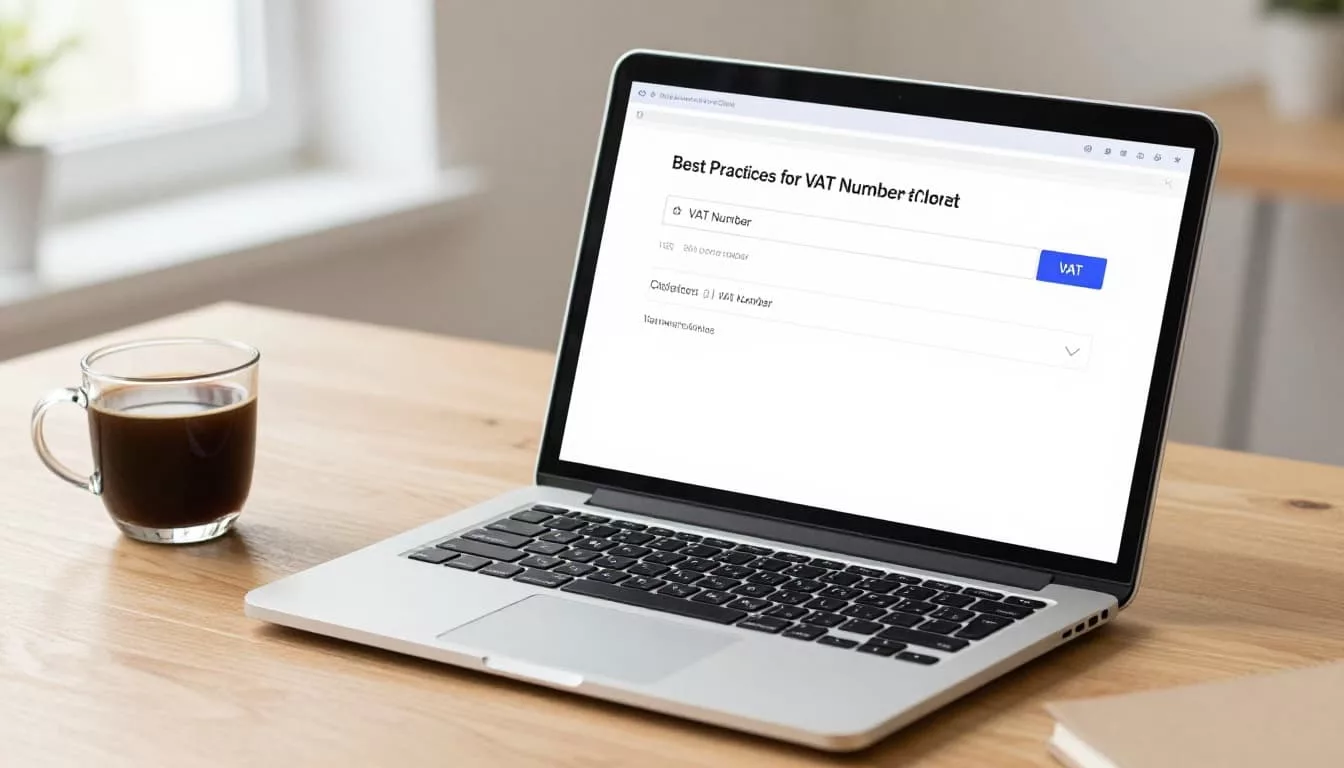
VAT Validation States That Feel Fast and Fair
Validation is where checkout trust is won or lost. Buyers want immediate feedback, but they also want to keep moving.
A live check against the VIES database is now a common expectation. For practical background on that flow, see how to check and validate EU VAT numbers. The important part for UX is not the database name, it is the feedback loop.
Use four clear states:
- Idle, with a short example format if needed.
- Checking, with inline progress and no page reload.
- Valid, with a clear success message and updated tax total.
- Invalid, with a plain explanation and a fallback path.
Keep the field editable during the check. If the user pasted the number with spaces or extra characters from the country code, accept it and normalize it in the background by stripping extra characters from the country code. If the validation takes a second, show that work. Silent delays feel broken.
When the VAT number is valid, update the order summary right away. Show the tax change before payment. When it is invalid, switch to the correct tax treatment and explain why in one sentence. Don’t hide the result behind a generic error.
If the number fails, the fallback should be visible before payment, not after the invoice goes out.
For UK and EU sellers, keep the systems separate in the backend but similar in the interface. A buyer should not need to learn your tax architecture. They only need to know whether their VAT number or tax identification number worked and what happens next. For cross-border B2B sales between the UK and EU, Stripe’s VAT compliance overview gives a clear business-level summary of the reverse charge mechanism.
Mixed carts and mixed audiences need a visible fallback
Mixed B2B and B2C stores need one extra layer of care. SAAS platforms and digital services providers often serve both audiences, so a buyer may be a company one day and a consumer the next. Some stores also sell to both groups in the same country, which makes the checkout even more sensitive.
Start with buyer intent, not the VAT field. Use a simple toggle, radio choice, or account attribute that says “Business” or “Personal”. Once the shopper chooses Business, reveal the VAT number field along with the company name field. Once they choose Personal, keep those fields hidden.
That pattern keeps the form calm. It also lowers the chance that a consumer buyer thinks they picked the wrong path. If the store needs to show prices, tax, and currency in the same way across regions, keep that consistency through the rest of checkout too, as covered in localized e-commerce UX for currency clarity.
Mixed carts also need strong summary copy for invoicing compliance. If a buyer adds business goods and consumer goods in one order, the cart should clearly show VAT per line and how tax will be handled before they reach payment. That is where the EU’s VAT e-Commerce One Stop Shop page becomes a useful reference point for broader cross-border VAT handling, especially when you need to explain why a cart follows one tax path instead of another.
A practical example helps. A UK office buyer orders laptops, then adds a few consumer accessories for staff gifts. The checkout should not bury the VAT logic inside a form field. It should show the buyer type, the VAT result, and the tax total in the same view.
That way, the VAT field supports the cart instead of fighting it.
Common mistakes that create checkout friction
Most VAT field problems come from confusion, not bad intent. A few small mistakes show up again and again, especially for physical goods sellers facing extra hurdles like import VAT and customs clearance.
- Asking for the number before the buyer has chosen business or personal.
- Using “Tax ID” for EU and UK buyers, then wondering why input quality drops as validation against tax authorities fails more often.
- Validating only after payment, which makes the tax change feel like a surprise.
- Clearing the field when the customer edits the address or country, which might also trigger a currency conversion update or affect supply chain management data.
- Hiding the tax result after a valid number is entered.
- Treating the UK and EU the same in the backend and the same in the copy.
- Forgetting fields for a fiscal representative, which some sellers require and can complicate the form for cross-border buyers.
That last one causes a lot of trouble. UK-to-EU B2B sales often use reverse charge logic, but the message still needs to be plain and visible. The seller should not force buyers to guess what happened. The easiest fix is to show the business tax outcome in the order summary and invoice preview, then keep the same wording after checkout.
Another common miss is failing to save the validated VAT number to the customer account for accounting purposes. Repeat B2B buyers hate retyping it. If the number is already trusted, let them reuse it and confirm the current status instead of making them start over.
Frequently Asked Questions
When should the VAT number field appear in the checkout flow?
Ask for the VAT number only after the shopper signals business intent, such as via a business/personal toggle. This prevents confusion for consumers and ensures tax logic aligns with buyer type before totals finalize. Early placement works for business-only stores, but mixed audiences need explicit selection first.
What are the best labels and helper text for the VAT field?
Use “VAT number” for EU/UK buyers, avoiding vague terms like “Tax ID” that confuse markets. Pair it with one-line helper text like “Enter your business VAT number to apply reverse charge where valid” to set expectations. Keep it near billing address and company fields for context.
How should VAT validation feedback work in UX?
Provide four clear states: idle with format example, checking with inline progress, valid with success and updated totals, invalid with explanation and fallback to consumer tax. Keep the field editable during checks and normalize inputs like extra spaces. Update order summaries immediately to avoid surprises.
How to handle mixed B2B/B2C carts and audiences?
Use a visible toggle for “Business” or “Personal” to reveal the VAT field only for business buyers, keeping forms simple. Clearly show VAT per line and tax handling in summaries for mixed carts. Align with cross-border rules like reverse charge without burying logic in forms.
What are common VAT field mistakes to avoid?
Don’t ask before buyer type selection, validate post-payment, or use inconsistent labels across regions. Avoid clearing the field on address edits or hiding valid results. Always save validated numbers for repeat buyers and show outcomes in previews.
Conclusion
A strong VAT field does more than catch a number. It tells the right buyer where they are in the tax flow and what the checkout experience will do next.
When the label is clear, the validation is fast, and the fallback is visible, cross-border B2B checkout feels controlled instead of risky. That is the heart of good VAT number UX.
If you get that part right, the rest of the checkout gets easier too. Buyers see fewer surprises, support gets fewer tickets from properly handled Value Added Tax fields, and your tax logic stays much closer to the way people actually shop while ensuring tax accuracy.