An online store can look polished while trapping a keyboard shopper in a size filter or leaving a screen reader silent after a card error. The best ecommerce accessibility testing tools catch repeatable code issues early, but they cannot prove a shopper can complete a purchase.
Retail sites change often, and accessibility bugs can appear in templates, third-party apps, payment steps, and promotional banners. A dependable program combines automated scans with task-based manual testing across the entire shopping journey.
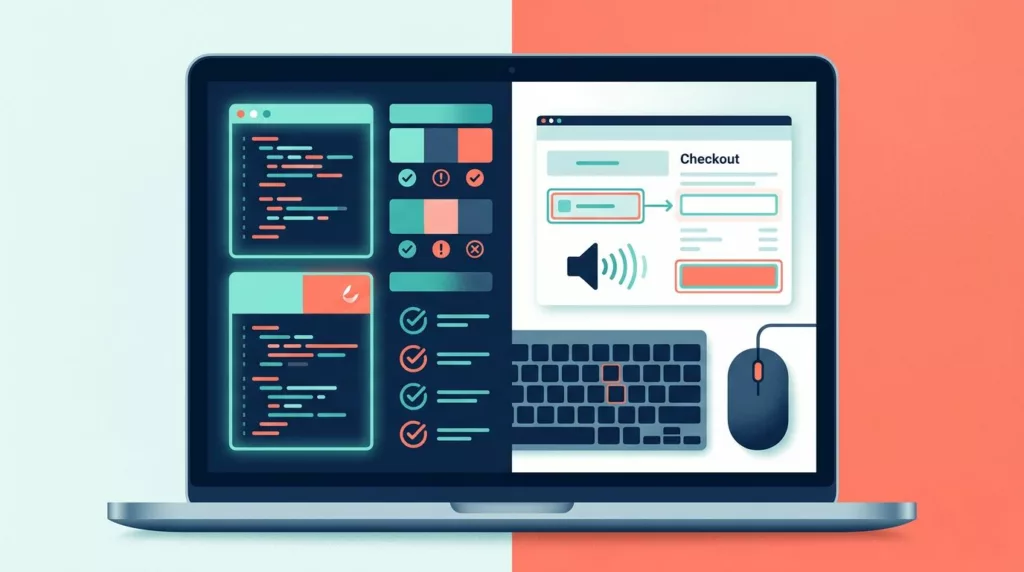
Ecommerce accessibility testing tools need two testing modes
Automated tests are fast and repeatable. They can flag missing accessible names, duplicate IDs, weak color contrast, invalid ARIA, and heading problems across many URLs. However, a scanner only evaluates the rendered state it can access.
Manual testing shows whether the experience works for people. It covers focus movement, error recovery, confusing announcements, time limits, and interactions that require a mouse or precise touch.
Scanners find patterns, not complete journeys
Run automated checks in local development, pull requests, staging, and scheduled production scans. The W3C evaluation tools directory is useful when comparing tools by platform, language, and testing method.
Scan more than the homepage. Include product listing pages, product detail pages, cart drawers, checkout steps, empty states, error states, modals, cookie banners, and authenticated account pages.
A clean automated scan means the tool did not detect known patterns on the tested state. It does not show that a shopper could complete a purchase.
Manual testing exposes interaction failures
A page can pass automated checks while its filter drawer traps focus. Likewise, a checkout can have correctly labeled fields but fail to announce a declined payment message.
Manual testing should cover keyboard-only use, zoom, mobile touch interaction, and at least one screen reader path. Testers should complete real tasks, not simply tab through a page.
A practical 2026 tool shortlist
The right choice depends on who will use the tool and when. Developers need fast feedback before code merges. QA teams need repeatable assessments. Ecommerce leaders need a view of recurring issues across templates and releases.
| Tool | Best fit | Free or paid |
|---|---|---|
| axe DevTools | Developer browser testing and team workflows | Free plan after trial, paid Bundle requires a sales quote |
| Accessibility Insights for Web | Guided browser checks and standards-based assessments | Free and open source |
| Google Lighthouse | Quick baseline audits in Chrome workflows | Free |
| WAVE | Visual page checks, API testing, and large site scans | Free browser tool, paid API and scan options |
| Pa11y | Scripted command-line checks | Open source |
| Siteimprove Accessibility | Enterprise evaluation during vendor selection | Pricing is not publicly listed |
Tool reports differ in their rules, issue grouping, and browser workflows. A comparison of common accessibility testing tools can help a team create a short list, but a pilot on your own store remains the better test.
Free tools for development and QA
Free tools lower the barrier to frequent checks. They work best when developers treat findings as defects to fix, rather than reports to export at the end of a release.
axe DevTools for quick browser feedback
axe DevTools is a strong starting point for inspecting a rendered component or page in the browser. Its free path begins with a trial and then downgrades to a Free account unless the team upgrades.
Deque sells its axe DevTools for Web Bundle through sales, and public Bundle pricing is not listed. That makes it sensible to start with the free browser workflow, then assess paid team features against your actual release process.
Accessibility Insights for Web for guided assessments
Microsoft’s Accessibility Insights for Web works in Chrome and Edge. Its FastPass workflow targets common, high-impact issues quickly, while Assessment provides a more structured review against accessibility requirements.
The tool is free and open source. It also supports WCAG 2.2 AA checks and has a CLI option for CI/CD use. That combination makes it a good fit for QA teams that need clearer manual test guidance alongside automated checks.
Lighthouse, WAVE, and Pa11y fill different gaps
Google Lighthouse is free in Chrome-based workflows and gives a quick accessibility score with audit details. Use it for early signals, not as a release gate by itself.
WAVE is helpful when designers and content teams need visual feedback on a rendered page. Pa11y suits engineering teams that prefer scripted command-line checks. This Pa11y tool overview describes its use for scanning single pages or wider sites.
Paid scanning tools for larger stores
A browser extension finds page-level defects. Larger catalogs need recurring scans across templates, locales, campaign pages, and product URLs. Paid platforms and APIs help teams assign, track, and verify fixes at that scale.
WAVE offers published API and scan pricing
WebAIM publishes prices for its WAVE Stand-alone API and testing engine. The Basic plan costs $4,000 per year for 100,000 API requests, up to three domains, and one installation. Expanded costs $8,000 annually, while Unlimited costs $12,000 annually.
For one-time broader coverage, WebAIM’s Accessibility IMpact scan starts at $500 for up to 20,000 pages. Additional 20,000-page blocks cost $100. This option can help establish a baseline before a redesign or a major platform migration.
Enterprise platforms need a realistic pilot
Enterprise products can centralize issue ownership, reporting, policy settings, and scheduled scans. Still, test their crawler against JavaScript-rendered filters, logged-in pages, regional storefronts, and third-party checkout boundaries before signing a contract.
Siteimprove Accessibility is one option to evaluate in this category, but public pricing was not available in current product information. Review automated testing tool trade-offs with the same caution: no scanner covers every user interaction.
Test the ecommerce flows that produce revenue
Testing only a product page misses the places where customers make decisions, enter personal data, and recover from errors. Build route and state coverage around the actual path to purchase.
Check search, filters, and product pages
Search must accept keyboard input, communicate results, and preserve an understandable focus order. Filters need clear labels, visible selected states, keyboard-operable controls, and a way to remove selections without losing context.
On product pages, test the image gallery, variant selectors, size charts, quantity controls, wish lists, stock messages, and “Add to cart” feedback. The ecommerce accessibility checklist offers useful checks for product, cart, and checkout states that scanners may miss.
Complete cart, checkout, accounts, and tracking
Use a keyboard to open the cart, change a quantity, apply a discount code, remove an item, and close any drawer or modal. Focus should remain visible and return to a sensible control after each action.
Then complete checkout with empty required fields, invalid address data, card errors, autofill, account creation, guest checkout, and any OTP or 3DS authentication step. Test payment provider handoffs where your team controls the integration. Finally, verify that order confirmation and order-tracking status updates have useful labels, headings, and accessible carrier links.
Use WCAG 2.2 as the technical reference
WCAG 2.2 gives ecommerce teams a shared way to write acceptance criteria and verify fixes. Level AA is a practical target for many online stores, though meeting a tool’s score does not create an automatic legal certification.
Prioritize new WCAG 2.2 ecommerce checks
WCAG 2.2 adds criteria that matter in commerce interfaces. These include Focus Not Obscured, Dragging Movements, Target Size (Minimum), Redundant Entry, and Accessible Authentication.
Check sticky headers, chat widgets, cookie prompts, and coupon banners because they can cover focused fields or buttons. Also test whether shoppers can use an alternative to drag-only interactions and whether account flows avoid needless re-entry of information.
Treat compliance as an ongoing product requirement
Legal duties depend on where you sell, the services you offer, and applicable local rules. The European Accessibility Act has applied to ecommerce services since June 28, 2025, while EN 301 549 and WCAG 2.2 are important technical references for many European teams.
A European ecommerce accessibility guide can help teams document tests and fixes. However, product teams should get legal advice for jurisdiction-specific obligations, contracts, claims, or enforcement questions.
Recommended stack and selection checklist
A sensible stack uses a different tool at each point where defects can enter the store. Start with browser checks during development, add automated tests to CI, scan key templates on staging, and manually test purchase paths before release.
Build a layered testing stack
Use axe DevTools or Accessibility Insights for browser-level developer checks. Add Lighthouse for quick baseline audits, then use Accessibility Insights CLI or another supported automated workflow in CI.
On staging, scan template families and major route states with WAVE or a comparable crawler. Before each significant release, run keyboard navigation testing for ecommerce and complete one screen reader purchase journey on desktop and mobile.
Choose tools against your actual store
Use this checklist when evaluating ecommerce accessibility testing tools:
- Confirm the tool can inspect JavaScript-rendered content, filters, modals, and cart drawers.
- Test whether it supports authenticated pages, regional storefronts, and your checkout architecture.
- Check how findings map to WCAG 2.2 criteria and whether the report identifies affected components.
- Ask whether results can enter Jira, GitHub, or your existing defect workflow without manual copying.
- Compare public costs, scan limits, and pricing that requires a sales quote before budgeting.
- Run a pilot against real purchase tasks, then measure how quickly the team can fix and verify issues.
Final thoughts
The best ecommerce accessibility testing tools are the ones your team uses before shoppers encounter a barrier. Automated scans catch repeated code defects, while manual task testing protects the parts of the store where people search, pay, and manage orders.
Build the process around real purchase journeys, then use WCAG 2.2 findings to turn accessibility into clear work for design, development, and QA.