
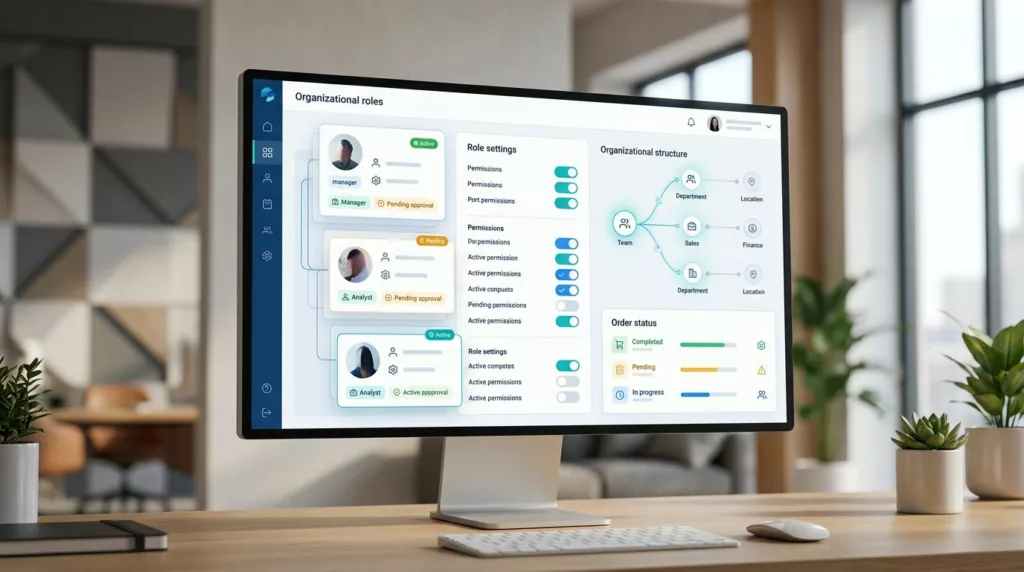
A buyer becomes an approver, an employee changes departments, or a finance manager takes over invoice reviews. B2B account portal UX has to handle these changes without blocking an active order or exposing sensitive company data.
The hard part is not adding a role selector. Your portal must show who can do what, when a change takes effect, which orders are affected, and where the user belongs. Good role-change UX makes those answers visible before someone contacts support.
B2B account portal UX should make role changes understandable
Most company portals mix four different ideas:
- The person using the account
- The role assigned to that person
- The permissions attached to the role
- The account, location, department, or cost center where access applies
Users don’t need to understand your authorization model. They do need to understand its result.
A buyer might have permission to create carts and submit orders under a $5,000 limit. An approver might review orders but lack permission to edit delivery addresses. A finance user might view invoices and payment terms without seeing product pricing negotiated for another division.
Those are different business responsibilities, even when the same person holds more than one role.
Use plain-language role names that match the customer’s organization. “Buyer,” “Approver,” “Finance,” and “Account administrator” are clearer than internal labels such as ROLE_PURCHASING_L2. A short description should appear beside each option:
- Buyer: Can create and submit orders within assigned limits.
- Approver: Can review orders routed to this approval queue.
- Finance: Can view invoices, payment terms, and payment history.
- Account administrator: Can manage users, roles, locations, and company settings.
The role is the label a customer sees. The permission is the action the system allows. Scope defines where that action applies. For example, a buyer could place orders for the Chicago warehouse but only view orders for the Dallas location.
That separation matters during a role change. If an administrator selects “Approver,” the interface should show the resulting capabilities and scope before saving. Avoid a long list of technical permissions with unclear names. Group actions by tasks such as ordering, approval, billing, account management, and reporting.
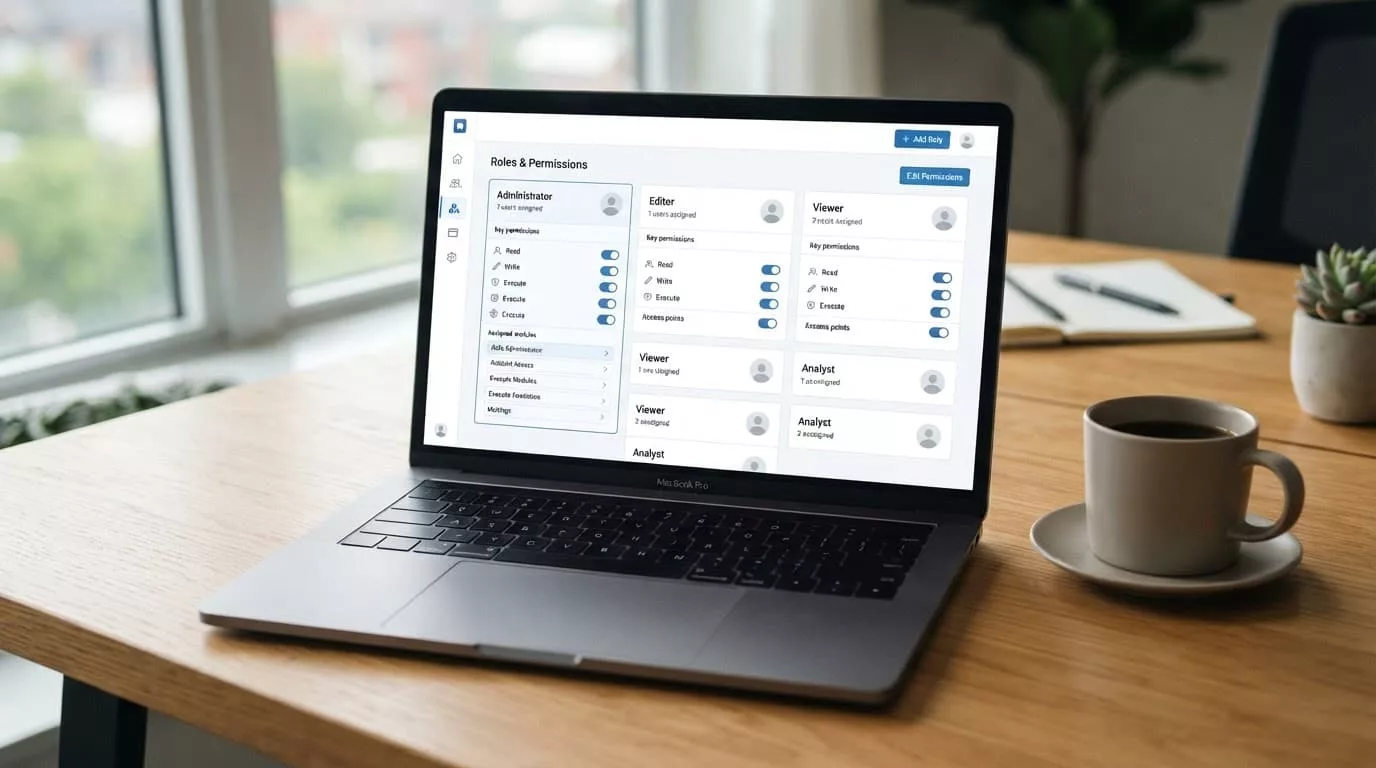
A clean permissions screen should explain the user’s practical access, not expose implementation details.
Company account permissions UX should also show the account context beside the role. A customer may belong to several subsidiaries, branches, or buying groups. Hiding that context creates a serious risk: an administrator can update a role correctly, but for the wrong location.
Design the role-change workflow around business events
A role change usually starts outside the portal. A manager changes departments, a contract ends, a new buyer joins procurement, or a finance lead needs access to invoices. The portal should turn that business event into a clear workflow.
Start with the user record. Show the person’s name, email, current role, assigned locations, account status, and the administrator who made the last change. Then give the editor a direct action such as “Change role” or “Update access.” Don’t bury it inside a generic settings menu.
The confirmation step should answer four questions:
- What access does the user have now?
- What access will the new role provide?
- Which access will be removed?
- When will the change take effect?
A before-and-after comparison works well here. It lets an administrator spot a dangerous change, such as removing invoice access from a finance user or removing approval rights from an active purchasing manager.
Use effective dates when the business needs a planned handoff. A role can change immediately, at the start of the next day, or after an administrator confirms the transition. The system should prevent contradictory states, such as a pending role change alongside a pending account suspension.
Status communication needs equal attention. After saving, show a clear result:
- Access updated
- Change pending customer approval
- Change scheduled for a future date
- Update failed because a required permission is missing
Don’t rely on a toast message that disappears in seconds. Add the current status to the user profile and activity history. When a user tries to perform an action during a pending change, explain the state in context. “Your approval access starts on July 15” is more useful than “Access denied.”
Self-service requests can reduce support work, but they need guardrails. A buyer could request access to another warehouse, while an account administrator approves the request. The requester should see who must approve it and whether the request is awaiting review.
The B2B user-management guidance from OroCommerce reinforces the need to manage multiple users through defined roles and permissions rather than treating every account as an isolated login. That model supports handoffs without creating one-off exceptions that become difficult to audit.
Keep multi-user buying teams moving during access changes
A role update should not strand an order in a hidden queue. Your portal needs to preserve the relationship between users, carts, orders, approval rules, and company accounts.
Consider a buyer who submits a $12,000 order before their manager changes roles. If that buyer loses access immediately, can the manager still approve the order? Can customer support locate it? Does the buyer receive a status update? These questions belong in the product requirements, not only in the authorization code.
Show approval ownership directly in the order timeline. Include the current status, next required action, assigned approver, approval limit, and relevant company location. Keep those details visible during checkout and order tracking, not only in an administration screen.
An effective status model might include:
- Draft, editable by the buyer
- Submitted, waiting for review
- Approved, ready for processing
- Rejected, with a reason and next step
- Returned, requiring buyer changes
- Cancelled, with the person and time recorded
Role changes also affect navigation. A buyer needs product search, saved lists, reorder tools, quotes, and order history. An approver needs an approval queue and decision details. Finance needs invoices, credit status, tax documents, and payment history. Administrators need user and permission controls.
Personalize navigation without removing essential context. A user should still see the company name, selected location, active account, and account-switching controls when permitted. If the user has access to only one location, don’t force a location picker. If several locations are available, make the current selection prominent.
The practical B2B account-area UX guide takes a similar operational view of the account area. A company portal is more than a profile page. It is where customers manage work that affects purchasing, delivery, billing, and internal control.

Role changes should preserve order visibility and approval continuity for the whole buying team.
Connect role-change UX with IAM, security, and support
The portal UI cannot be the only place that enforces access. Every permission check must also work at the API and business-logic layers. Hiding a button doesn’t stop a user from calling an endpoint directly.
Use least privilege as the default. New users should receive only the access required for their assigned work. Add broader permissions through an explicit role or approved request. Avoid ad hoc exceptions that give one person access to a sensitive action without a clear reason.
Identity and access management teams should agree with product and commerce teams on the events that trigger changes. These may include:
- A user joins or leaves the company
- An employee changes department
- A location is added or removed
- An approval limit changes
- An account is suspended
- A single sign-on group changes
Your portal should handle both manual updates and identity-provider events. If an administrator changes a role in the portal, the activity should appear in the same audit trail as a change made through SSO or automated provisioning.
Record the old role, new role, scope, actor, timestamp, reason, and status. Customers often need this information during an internal review or invoice dispute. Support teams need it when a user says, “I could access this yesterday, but I can’t now.”
Build role review into the account experience. An administrator should be able to see inactive users, unused permissions, duplicate roles, and users with access to multiple locations. Regular review helps remove old access after reorganizations and employee departures.
Accessibility belongs in every step. Permission tables need proper heading structure, visible keyboard focus, readable contrast, and labels that make sense when read aloud. Don’t communicate a role change through color alone. Pair status colors with text and icons that have accessible names.
Error messages should identify the action and the next step. “You can’t approve this order because your limit is $10,000” gives the user a path forward. “Unauthorized” doesn’t.
An account portal audit should test these workflows with real customer scenarios. The B2B ecommerce account portal audit checklist covers access control alongside ordering, billing, integrations, accessibility, and security. That broader review matters because role changes rarely affect one screen.
Test role changes with realistic company scenarios
A permissions matrix is useful, but it cannot replace task testing. Ask participants to complete realistic actions while their role changes during the process.
Test a buyer who submits an order, then loses access to the location. Test an approver whose limit increases while an order waits in the queue. Test a finance user who gains invoice access but must not see another subsidiary’s pricing. Test an account administrator who duplicates an existing role and removes one permission.
Watch for moments when users hesitate:
- They can’t tell which company or location is active.
- They don’t know whether a role change is immediate.
- They see a disabled action without an explanation.
- They can’t find the person who approved an order.
- They assume a role grants access across every company account.
- They contact support because the status history is incomplete.
Run these tests with customer success and support representatives as well as end users. Support teams know which permission questions generate repeat tickets. Customer success managers know where account structures differ between customers. IAM teams know which changes come through automated identity workflows.
Measure more than conversion. Track access-related support contacts, failed approval attempts, time needed to complete a role change, abandoned carts after permission errors, and the number of manual overrides. These measures show whether the portal helps customers manage work without staff intervention.
Conclusion
A strong B2B account portal UX makes role changes visible, scoped, and safe. It separates human-friendly roles from system permissions, preserves order and approval context, and tells users exactly when access changes take effect.
The best experience doesn’t ask customers to understand authorization logic. It gives buyers, approvers, finance users, and administrators the right actions for their responsibilities, with clear status, accessible controls, and an audit trail behind every decision.