
If your store uses Google Ads or GA4, Shopify Consent Mode V2 belongs on the short list of things to fix first in 2026. It affects how Google tags behave before and after a visitor makes a privacy choice. Get it wrong, and your reporting can turn into fog.
The good news is that the setup is very workable on Shopify. You need a consent platform that supports V2, the right default signals before tags load, and a clean tracking setup with no duplicates. After that, testing matters just as much as installation.
What Shopify Consent Mode V2 does, and why a banner alone isn’t enough
Consent Mode V2 tells Google whether it can use storage and ad-related data for a given visitor. In practice, that means four signals matter most: ad_storage, analytics_storage, ad_user_data, and ad_personalization. For most stores in March 2026, the safe default is simple: set all four to denied before Google tags load, then update them when the shopper makes a choice.
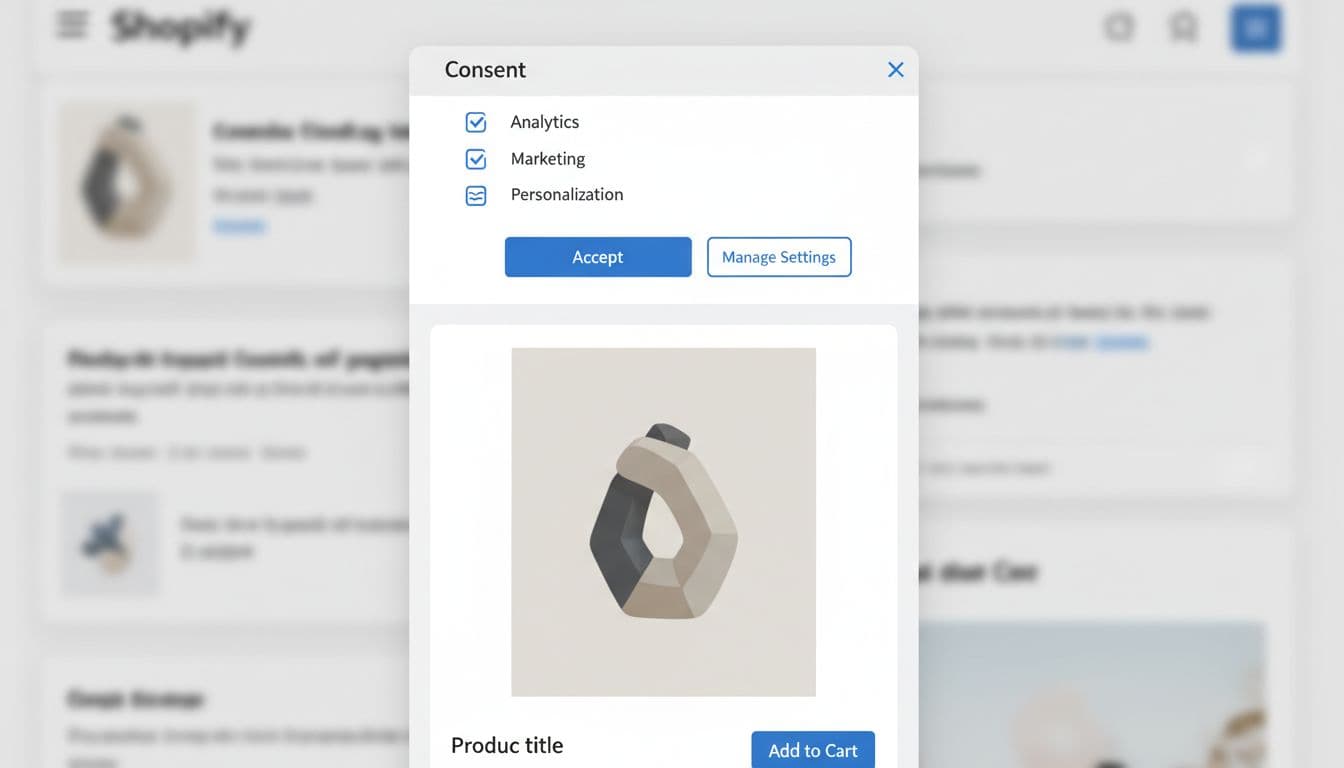
A banner is only the front door. The wiring behind it matters more. If GA4 or Google Ads tags fire before consent defaults are set, the banner becomes decoration. That’s why many merchants use a CMP app with built-in V2 support, such as the setup shown in the CookieYes Shopify integration guide.
A cookie banner does not control Google tags by itself. Consent Mode V2 only works when consent signals reach Google before the tags fire.
Shopify also adds a wrinkle here. Theme apps, custom scripts, GTM containers, and Shopify’s own pixels can all touch tracking. As a result, “installed” doesn’t always mean “working together.” A current overview like Converlay’s Shopify Consent Mode V2 guide is useful for checking the moving parts, but your exact stack still decides the real work.
If you sell into the EEA or UK, review the setup with your privacy or legal team. Consent Mode helps support privacy requirements, but banner wording, regions, and lawful basis choices still need human review.
The basic setup path for most Shopify stores
For most merchants, the basic path is the right starting point. It’s faster, easier to audit, and less likely to break after a theme or app change.
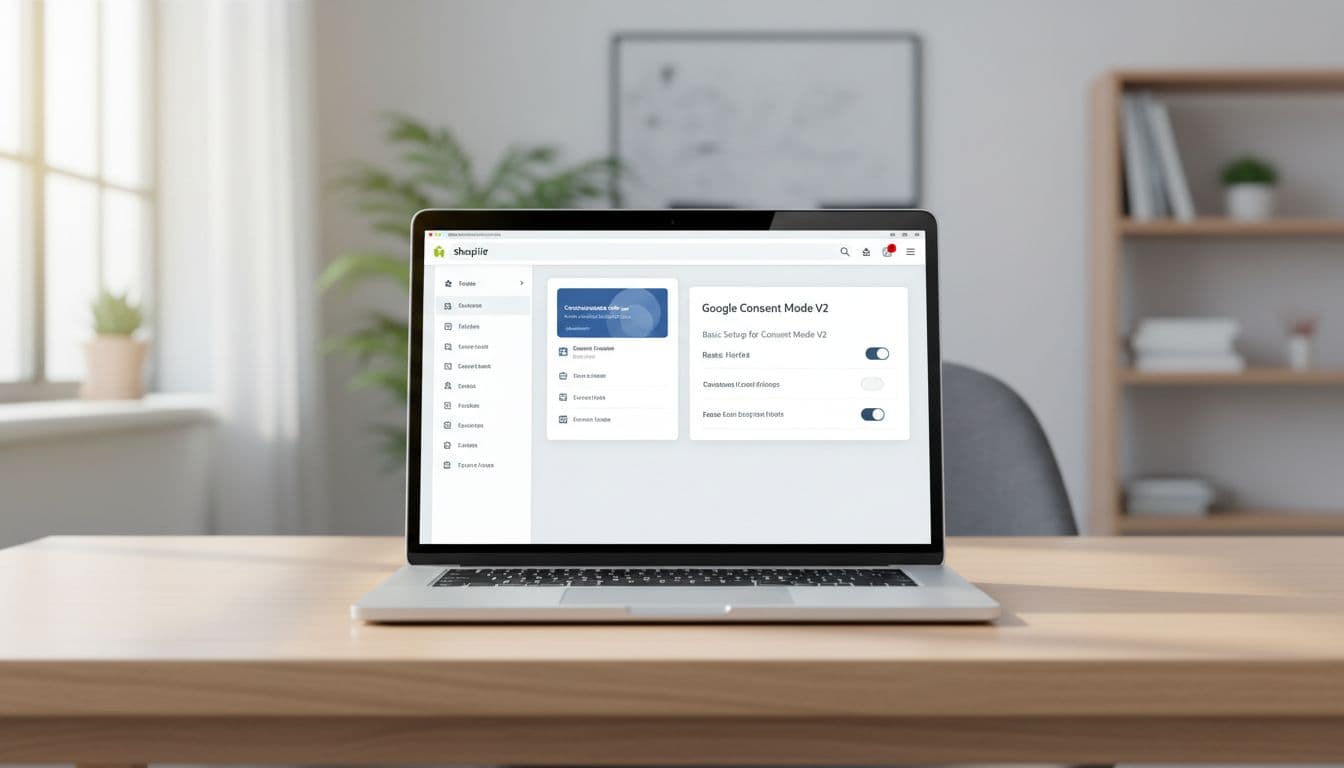
Follow this order:
- Pick one CMP that supports V2 well. Good options usually map banner choices to Google consent signals automatically.
- Set defaults before Google tags load. All four key signals should start as denied. Also switch on ad data redaction if your CMP or tag setup supports it.
- Connect consent updates to your tags. When a shopper accepts or rejects categories, the CMP must send the updated signals right away.
- Choose one main tracking path. If you use GTM, don’t let Shopify’s native Google connection or another app fire the same events too.
- Test the storefront and checkout separately. Shopify theme code and checkout extensions don’t always behave the same way.
Basic mode means Google tags wait until consent is granted. That cuts risk and keeps setup simple. It’s often the best fit for smaller stores, stores with limited dev time, or teams cleaning up old tracking debt.
One common trap is duplicate measurement. A store might have GA4 through Shopify, GA4 through GTM, and a marketing app firing extra events on top. If your reports already look odd, use this Shopify GA4 ecommerce audit checklist before changing more tags.
Also watch theme and app differences. Some CMPs use app embeds, some inject scripts, and some rely on GTM. After a theme publish, app embed status can change. That sounds minor, but it can silently turn consent updates off.
When an advanced setup makes sense
Advanced mode is a better fit when you run paid media at scale, need modeled conversions, or use server-side tagging. Instead of blocking all Google activity before consent, it allows limited, cookieless pings. Those signals can help Google model missing conversions later, but only when the setup is clean and traffic volume is high enough.
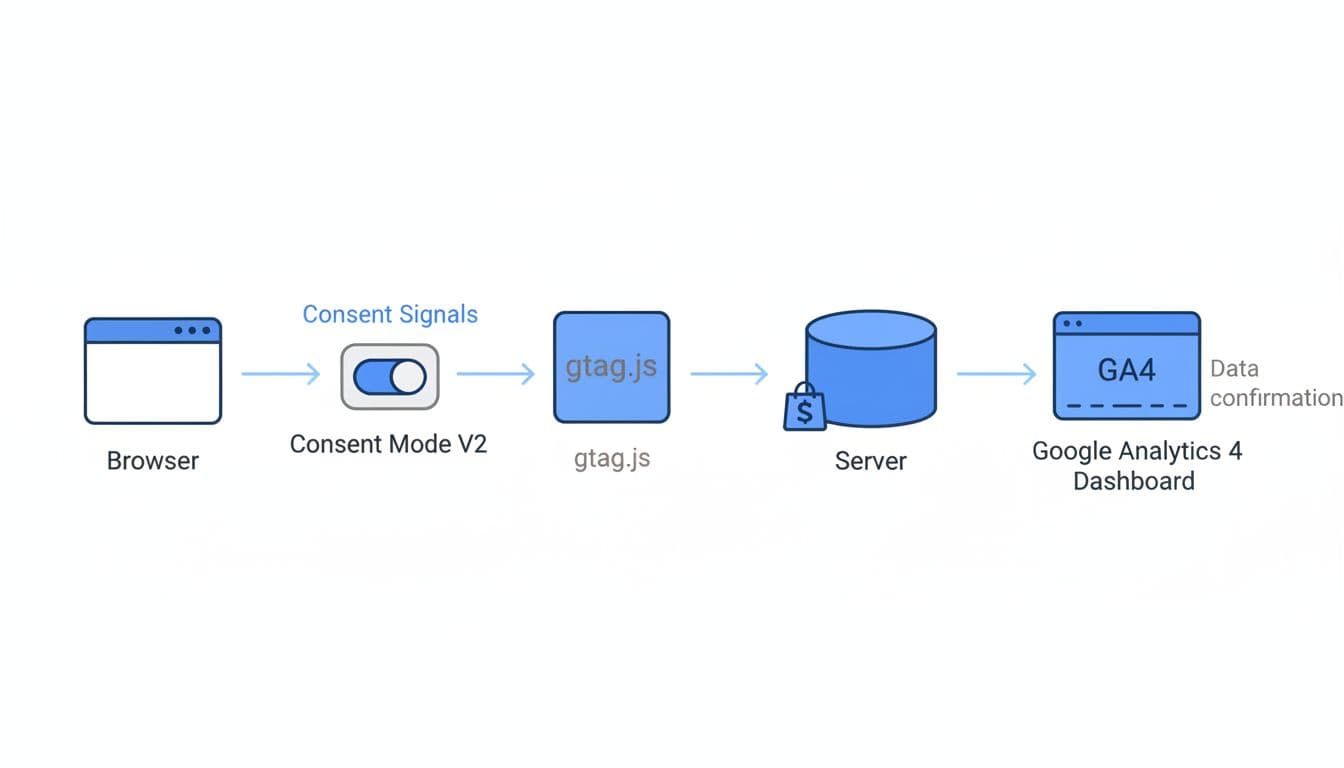
In GTM, the CMP tag should load on Consent Initialization. Then each Google tag needs the right consent checks attached. If you also run a server-side container, add deduplication so one purchase doesn’t arrive twice from browser and server.
This route helps with more than ad platforms. It can also handle refunds, subscription renewals, and back-office events with better control. Still, don’t send personal data in event payloads. Keep emails, phone numbers, and names out of Google event data.
For deeper build details, this advanced Consent Mode setup walkthrough is a useful reference. On Shopify, though, advanced work usually needs closer testing because customer events, app pixels, and checkout extensibility can all affect timing.
Testing tips and the fixes that solve most problems
Testing should feel like checking plumbing after a remodel. You don’t trust the new pipe because it looks fine. You run water through it.
Use this quick checklist:
- Preview first: Test in GTM preview or your CMP test mode before publishing.
- Check deny first: Reject all categories and confirm GA4 or Ads cookies do not drop early.
- Then check accept: Grant consent and confirm events fire in the right order.
- Watch for duplicates: One purchase should mean one
purchaseevent, not two or three. - Retest after theme changes: A new theme, app embed change, or script app can break consent timing.
If something looks off, the cause is often simple. GA4 firing before consent usually means defaults loaded too late. Missing updates usually point to a broken CMP app embed. Inflated conversions often come from duplicate tags. Slow pages can come from too many third-party scripts competing at page load, so this Shopify third-party script audit guide helps when privacy work and performance work overlap.
Lower GA4 numbers than Shopify are normal to a point. Consent choices, blockers, and browser limits all reduce trackable data. What you want is clean, consistent measurement, not fantasy-perfect parity.
In short, treat Shopify Consent Mode V2 like part of your store’s tracking foundation, not a banner add-on. Start with denied defaults, connect clean updates, remove duplicate tags, and test every change. When privacy, marketing, and dev teams use the same map, the setup gets much easier to trust.