
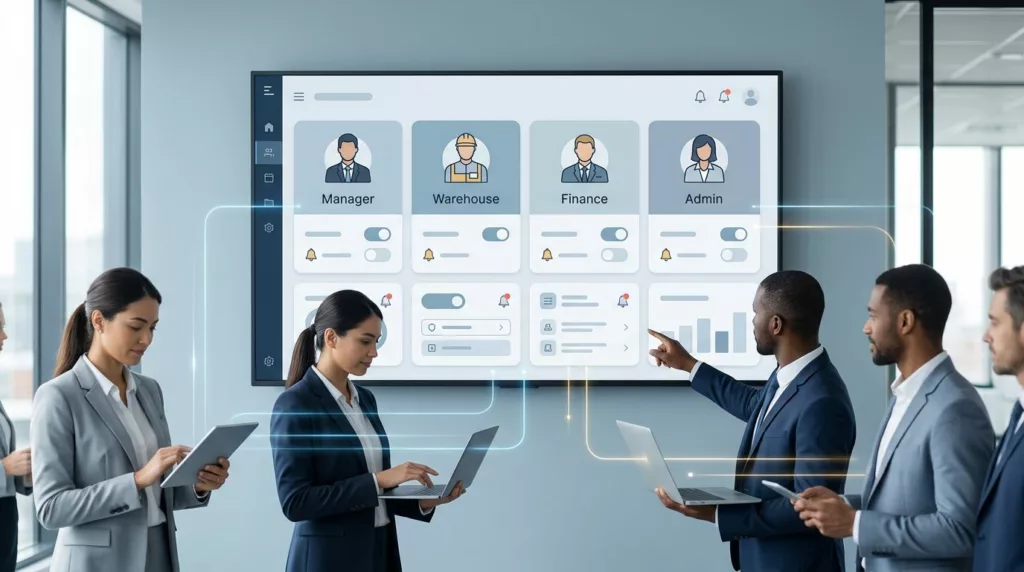
A missed order update can delay a shipment, while one unnecessary email can lead to notification fatigue and cause a buyer to ignore the next important message. Because several people often share a single business account, implementing a thoughtful notification preferences UX is essential to ensuring critical updates reach the right stakeholders.
B2B buyers need control without having to understand your internal event system. A purchasing manager, warehouse lead, finance specialist, and account administrator may all need different messages from the same portal.
The strongest preference experience connects each notification to a clear business task, user role, and delivery channel.
Key Takeaways
- Separate Personal and Account-Level Controls: Distinguish between individual notification preferences and organization-wide settings to prevent one-size-fits-all configurations that lead to notification fatigue or missed alerts.
- Align with Business Tasks: Organize settings around familiar workflows—such as ordering, shipping, and billing—rather than internal system events to ensure users understand exactly what they are managing.
- Implement Role-Based Context: Tailor notification visibility and default settings based on user responsibilities, ensuring that security alerts or sensitive invoices reach the appropriate stakeholders without overwhelming others.
- Prioritize Clarity and Transparency: Clearly communicate the “what, where, and who” for every setting, and explicitly label whether a preference is user-controlled, managed by an administrator, or required by policy.
Why B2B notification preferences need a different approach
Consumer products often let one person choose personal communication settings. B2B portals have a more complex structure that requires greater user control. One customer account may include dozens of users, multiple locations, approval rules, and separate responsibilities for purchasing, receiving, and payment.
A buyer may place an order, but another employee may approve it. The warehouse team may need shipment tracking, while accounts payable needs invoices and credit notes. The account administrator may need every security alert but no product promotion.
A single account-wide toggle cannot handle these notification settings well. It creates two common problems:
- Users receive messages that don’t apply to their work.
- Important alerts reach only the person who placed the order.
The portal should separate personal preferences from account-level controls. Personal preferences belong to an individual user. Account-level settings affect the whole organization and should usually require administrator access.
For example, an individual buyer might select email notifications or SMS for shipment updates. Only an administrator might change whether all users receive monthly account statements. The interface should show this difference before a user changes a setting.
Role-based access also matters for long-term user engagement. A sales representative may view customer-facing order updates, but not change security notifications. A finance user may manage invoice alerts without seeing another employee’s personal contact details. By tailoring these permissions, you ensure that relevant messages keep the right team members connected to the portal.
Every preference should answer three questions quickly: what will I receive, where will it arrive, and who else will receive it?
The answer should appear beside the setting, not inside a help article that users must search for later.
Build a notification model around business events
Good preference design starts with a robust notification strategy that focuses on the specific events buyers care about. Avoid organizing settings around internal system names such as workflow trigger 14 or order service update; instead, use language that matches the buyer’s workflow.
Common B2B commerce events include:
- Order confirmation and order changes
- Approval requests and approval outcomes
- Backorder, stock, or product availability updates
- Shipment dispatch and delivery exceptions
- Invoice creation, payment reminders, and credit memos
- Quote expiration and quote approval
- Return authorization and refund status
- Password, sign-in, and account security events
Each event needs a clear delivery policy. Some messages, such as actionable notifications for approvals, can be optional. Others should remain mandatory as critical alerts because they protect the account or complete a transaction.
| Notification type | User control | Typical channel |
|---|---|---|
| Order confirmation | Optional for recipients, required for the order owner | Email, UI notifications |
| Approval request | Usually controlled by role or workflow | Email, UI notifications |
| Shipment exception | User-selectable | Email, SMS, UI notifications |
| Invoice available | User-selectable by finance users | Email, UI notifications |
| Password reset | Required | |
| Suspicious sign-in | Required, with security escalation | Email, SMS |
The table should guide the interface, not replace it. Users still need plain-language descriptions and a visible explanation of any locked setting.
Transactional notifications and promotional messages also need separate treatment. A buyer who wants fewer product announcements still needs an invoice reminder. Combining both categories under general email preferences creates uncertainty and can produce compliance problems, especially when UI notifications for transactional updates are mixed with marketing content.
A useful preference model stores several attributes for each notification:
- Event: What happened?
- Audience: Which role or person should know?
- Channel: Where should the message arrive?
- Timing: Immediately, in a digest, or only as in-app notifications inside the portal?
- Control level: Can the user change it, or does an administrator control it?
This model gives product teams a consistent foundation for screens, APIs, audit logs, and support documentation.
Design the settings screen for fast decisions
A notification settings page should help users make a decision in seconds. Utilize clear design patterns to organize categories based on work tasks, such as Orders, Shipping, Billing, Quotes, and Account Security. Keep category names familiar and use progressive disclosure for advanced controls.
A useful row might read:
Shipment delays
Receive an alert when an order misses its expected dispatch or delivery date.
The row can include channel controls for email, SMS, and in-app notifications. Avoid unexplained icons; if the interface uses a bell, envelope, or mobile symbol for push notifications, pair each icon with a text label.
Users should see the current state without opening a detail panel. Clear status indicators using an on or off toggle work better than vague labels such as active or enabled. When a setting is controlled by an administrator, show “Managed by your account administrator” and provide the administrator’s support path if appropriate.
The save behavior for your notification settings must also be obvious. Instant saves work well for independent toggles when the interface confirms the change. A page-level Save button can work for grouped settings, but the page should warn users about unsaved changes before they leave. You may also want to allow users to snooze notifications or mute notifications temporarily to prevent overload.
Avoid resetting preferences when a user changes roles, switches locations, or adds a new channel. Preserve existing choices and explain new defaults. A notification center can also show recent messages, helping buyers understand what each preference controls.
Use defaults that reflect risk
Defaults should match the consequence of missing an event. Security alerts and password resets should remain required. Approval requests should usually turn on for users who hold approval authority. Marketing messages can start off or use a separate consent flow.
Effective onboarding design ensures a new user does not need to configure every option before placing an order. Give them useful defaults, then offer a short setup path after account creation.
The interface should also distinguish between a channel being available and a channel being selected. An email option may stay disabled until the user verifies an email address. SMS or push notifications may require a phone number and consent. Explain the reason beside the control.
Support digest controls without hiding urgent events
Digests can reduce inbox volume, but they do not suit every situation. A daily order summary may work for a purchasing manager, but a delivery exception often requires immediate push notifications.
Offer timing only where it matches the event. Common choices include immediate, daily summary, weekly summary, and portal only. Avoid offering a weekly digest for a password warning or an approval request with a short deadline. When considering the timing and placement of alerts, remember that a digest should reduce repetition, not delay a decision that affects money, access, or delivery.
If a user selects a digest, clearly display the expected delivery timing and notification frequency. B2B teams often operate across regions, so you must define the timezone for when these summaries arrive.
Account administrators need a separate control layer
Administrators manage the account’s communication structure, but they should not have to impersonate every user. Provide an account-level settings area that centralizes notification settings with clear scope and permission rules; this is a critical aspect of effective interface design.
An administrator may need to:
- Set default preferences for new users
- Assign notification recipients by role
- Add shared finance or logistics addresses
- Require alerts for specific business events
- Review delivery failures and bounced addresses
- View a change history for account-level settings
Recipient management deserves careful interface design. A shared address such as ap@company.com may receive invoices, while a warehouse inbox may receive dispatch updates. The portal should show whether an address belongs to a named user, a group, or the organization.
Don’t let an administrator silently override a personal choice without explanation. Display the source of each setting, such as “User choice,” “Account default,” or “Required by your organization.” If an account policy locks a channel, show the policy name or an administrator contact.
Role-based defaults should reflect actual workflows. For example, a buyer could receive order confirmations, an approver could receive approval requests, and a finance contact could receive invoice notices. However, users may hold more than one role, so the system should prevent duplicate messages when one person matches several recipient rules.
A preview mode can help administrators test a policy using standard design patterns before publishing it. Show which roles will receive each event and through which channels. Keep the preview based on sample event data rather than exposing real customer or invoice information.
Audit history matters when a team asks, “Who changed this?” Record the user, setting, timestamp, and previous value. This information helps support staff resolve disputes without guessing, ultimately driving higher levels of user satisfaction.
Make the experience accessible and easy to trust
Notification controls must work with keyboards, screen readers, zoom, and mobile layouts. To maintain high levels of user engagement, you must ensure that your inclusive design allows everyone to stay active and informed. Each UI notification toggle needs an accessible name that clearly identifies both the event and the delivery channel. A bare toggle with no visible label creates confusion for everyone, especially users who rely on assistive technology.
Use sufficient color contrast and do not communicate state through color alone. Text such as “On” and “Off” can support the control. Error messages should identify the problem and the required next action, such as verifying a phone number before enabling SMS.
Trust also depends on timing and confirmation. After a user changes preferences, confirm what changed and when it takes effect. If email delivery can take several minutes, say so. If the portal remains the primary source of record, explain that notification settings do not remove documents from the account. Providing this level of transparency is a critical component of user retention, as clear feedback prevents frustration and keeps users from abandoning the portal.
Localization requires more than translated labels. Dates, times, timezones, number formats, and legal consent language may vary by market. A global account might also need location-specific recipients and rules.
Mobile users need the same control over preferences as desktop users. Keep channel controls large enough to tap and avoid placing destructive actions beside common toggles. A user checking a delivery exception from a phone should not have to search through a desktop-only settings layout to manage their UI notifications effectively.
Test notification preferences with real account scenarios
Usability testing should include account structures, not only individual users. Give participants tasks that reflect their work:
- A buyer changes shipment updates to email only.
- A finance user adds a shared invoice address.
- An administrator sets defaults for new warehouse users.
- An approver checks why a request did not arrive.
- A user identifies which settings the organization controls.
- A user checks their notification center to see if they missed badge notifications for urgent tasks.
Watch for hesitation around ownership, timing, and channel meaning. Ask participants what they expect to happen after they save these personalized updates. Their answers often reveal unclear labels or hidden dependencies.
Product teams should also test edge cases. These include users with multiple roles, deleted recipients, bounced email addresses, duplicate channels, account mergers, and a user who loses administrator access.
Track operational signals after launch. Useful measures include preference completion, changes reverted within a short period, notification delivery failures, support contacts about missing messages, and the rate of duplicate alerts. Monitor how often users engage with the notification center to verify that their chosen settings align with their actual needs. A high number of settings changes is not automatically good. It may indicate that defaults or labels need work.
Run controlled tests on wording and layout when enough traffic exists. Compare clear event labels with internal terminology, or test grouped categories against a long list. Keep security and legally required communications outside experiments that could suppress them.
Frequently Asked Questions
How should I handle settings that are controlled by an administrator?
When a setting is managed at the account level, clearly label it as “Managed by your account administrator” within the interface. Avoid silently overriding user choices; instead, provide transparency by showing the source of the setting and offering an administrator contact path if the user has questions.
Why should I separate promotional messages from transactional alerts?
Mixing marketing content with essential transactional updates like invoice reminders or shipment exceptions creates uncertainty and can lead to compliance issues. By treating these categories separately, you ensure users can opt out of promotional content without accidentally missing business-critical communication.
Can digest controls be applied to all types of notifications?
Digests are effective for non-urgent tasks like daily order summaries, but they should not be used for time-sensitive events. Never offer a weekly or daily digest for critical alerts like password security warnings or urgent approval requests that require immediate action.
How do I prevent users from receiving duplicate notifications?
When a user holds multiple roles or is part of several distribution groups, the system should intelligently deduplicate alerts. Ensure the backend logic checks for redundant recipient definitions before sending so that the user receives a single, unified message across their selected channels.
Conclusion
Effective B2B notification preferences UX centers on aligning system alerts with the specific needs of an organization, user roles, and daily operational decisions. To succeed, you should separate personal choices from account policies, link every setting to a recognizable business event, and ensure that required alerts are visually distinct from optional messages.
The best notification preferences UX does not force users to manage unnecessary system complexity. Instead, it empowers them by providing clear user control, clarifying who owns each setting, and ensuring that vital information is delivered through a channel they can trust.