


A Shopify theme can feel like a new coat of paint. The store looks better, but the foundation might still creak. That’s why a Shopify theme audit matters before you spend money, install anything, or start custom work.
In 2026, the bar is higher. Shoppers expect fast pages, clean mobile UX, and accessible navigation. Meanwhile, your team needs Online Store 2.0 flexibility, app compatibility, and code that won’t fight you every time you add a section.
This checklist is built for real decisions: buy or avoid, customize or switch, ship or pause.
Quick preflight plan: audit safely (and avoid breaking your live store)
Treat a theme change like rewiring a house. You don’t start by cutting power to the living room. Start with a safe copy, clear tests, and a simple scoring method.
Preflight steps (10 to 20 minutes):
- In Shopify admin, go to Online Store > Themes.
- Find your current theme, click Actions > Duplicate (this is your rollback point).
- Add the new theme to your library (or duplicate its demo copy), then click Actions > Preview (never publish yet).
- Create a simple “test set” of pages to review: home, collection, product, cart, search results, and a content page.
- Decide your acceptance targets before you fall in love with the design.
A quick scoring approach helps keep the team honest. Score each area from 0 to 5, then total it: performance, OS 2.0 flexibility, accessibility, SEO, maintainability, and support. If the theme can’t hit your minimum score, stop early.
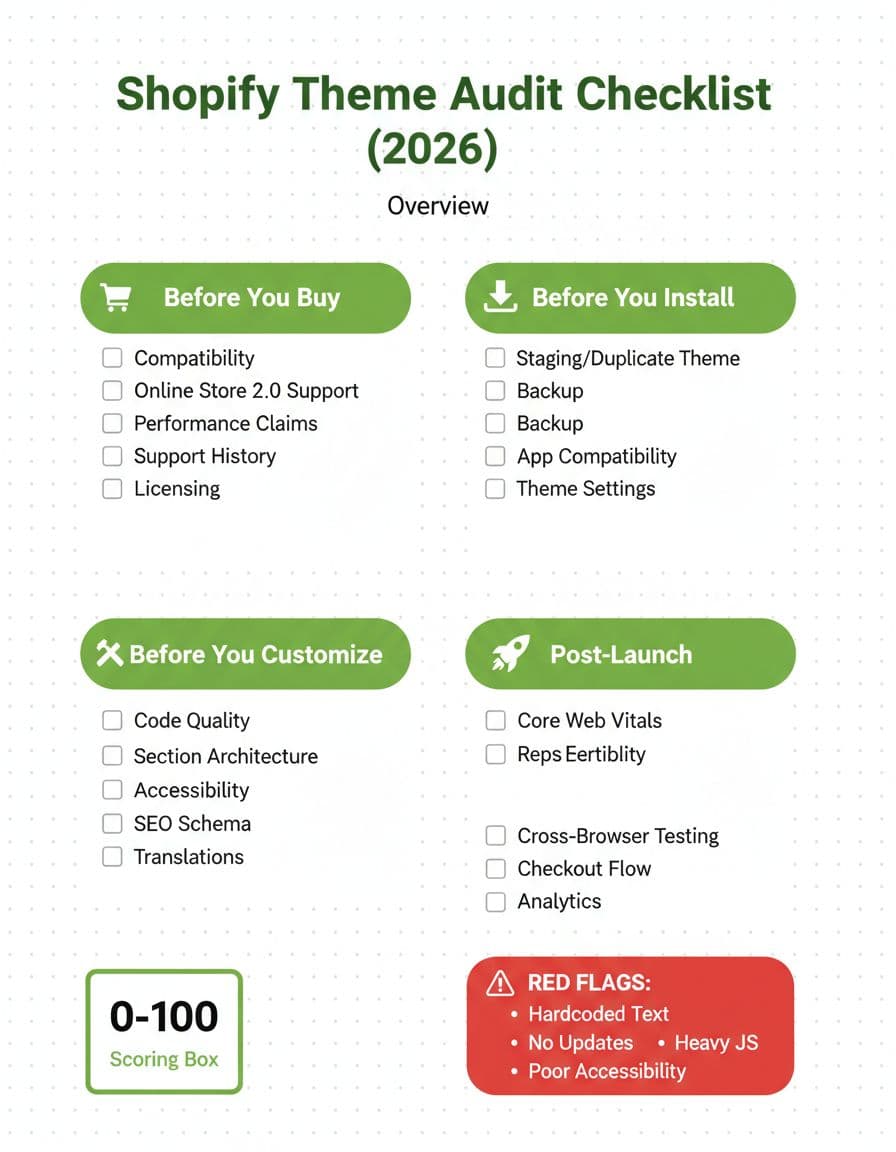
If you can’t audit it in preview, you probably can’t maintain it after launch.
Shopify theme audit checklist (2026), stage by stage
Before you buy: confirm fit, flexibility, and support history
Start with the boring stuff because it saves the most money later.
What to check
- Online Store 2.0 support: You want JSON templates, sections everywhere, and app blocks. Avoid themes that feel “locked.”
- Use-case fit: A fashion theme can struggle with complex specs, bundles, or long-form product pages.
- Update cadence and docs: Check the theme listing, changelog, and documentation depth. A pretty demo with thin docs is a warning.
- Licensing: Confirm it’s licensed for your store count, and understand transfer rules.
How to verify
- On the theme’s demo store, test: product variants, media zoom, filters, predictive search, and cart behavior.
- Ask for a real performance screenshot, not a marketing number. Better, run Lighthouse on the demo page.
- If you already have key apps, confirm they support app blocks and don’t require template edits.
Buy vs. avoid (quick filter)
| Signal | Usually safe | Usually risky |
|---|---|---|
| Updates | Recent, frequent, clear notes | Old, vague notes, long gaps |
| Customization | Sections and blocks everywhere | Hardcoded layouts, few sections |
| App support | Uses app blocks and app embeds | Requires manual code edits |
| Performance | Lean JS, fast demo on mobile | Heavy animations, slow demo |
Before you install: measure performance, then hunt for app bloat
Many stores blame themes for speed issues that actually come from apps. Your audit should separate the two.
Recommended tools
- Lighthouse or PageSpeed Insights (Core Web Vitals signals)
- WebPageTest (waterfall and third-party scripts)
- Chrome DevTools (Coverage, Network, Performance)
- Shopify Theme Inspector for Liquid (slow Liquid renders)
- Accessibility checkers (WAVE, axe DevTools)
What to check
- Render-blocking assets: Large CSS, bulky JS bundles, too many app scripts.
- Image handling: Missing lazy loading, oversized hero images, too many sliders.
- App embeds: Too many enabled at once, even on pages that don’t need them.
How to verify (where to click)
- Shopify admin: Online Store > Themes > (new theme) > Actions > Preview.
- In preview, open Chrome DevTools and run Lighthouse on the home and product pages.
- Shopify admin: Online Store > Themes > Customize > App embeds, then toggle non-essentials off and re-test.
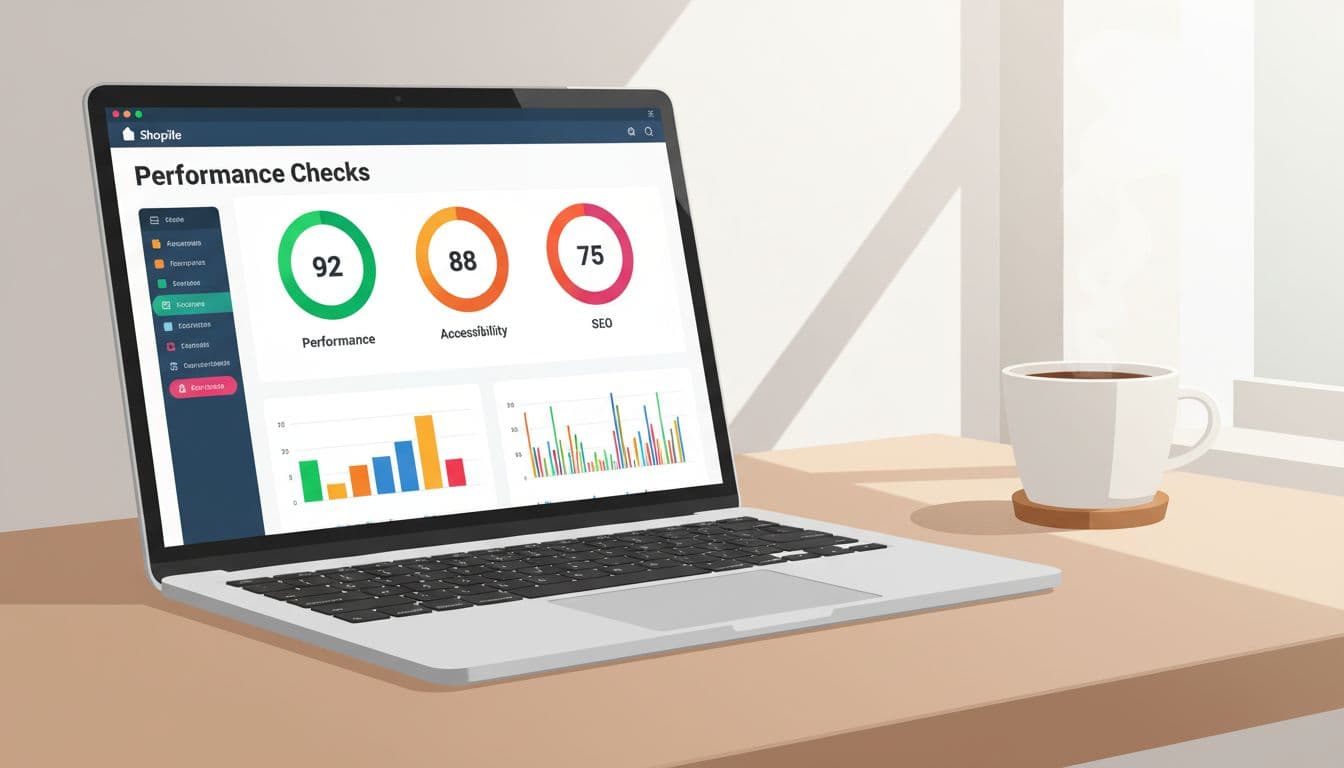
Accessibility belongs in this stage too because it’s cheaper to fix early. Use a checklist like the Shopify accessibility checklist for ADA compliance to catch common theme and app issues fast.
Common pitfall: installing the theme, then stacking five “must-have” apps, then wondering why mobile feels slow.
Before you customize: check code quality, section architecture, and SEO basics
Customization is where “nice theme” becomes “expensive theme.” A good Shopify theme audit looks for maintainability, not just features.
What to check
- Section-first architecture: Sections should be reusable and configurable, not one-off templates.
- Hardcoded text: You’ll regret it during promos, localization, and A/B tests.
- Liquid performance hotspots: Slow loops over large collections, heavy rendering in
theme.liquid. - SEO and structured data: Clean heading hierarchy, product schema, and sensible internal linking patterns.
How to verify (where to click, what to look for)
- Shopify admin: Online Store > Themes > Actions > Edit code.
- Look for OS 2.0 template files in
/templates/*.json. Too many legacy.liquidtemplates can signal rigidity. - Check
/sections/for modular sections with predictable settings schemas. - Run Shopify Theme Inspector for Liquid and inspect slow renders. Fixing one heavy section often beats “optimizing everything.”
- Scan for hardcoded strings in templates and sections. Prefer
locales/*.jsonso content can be translated.
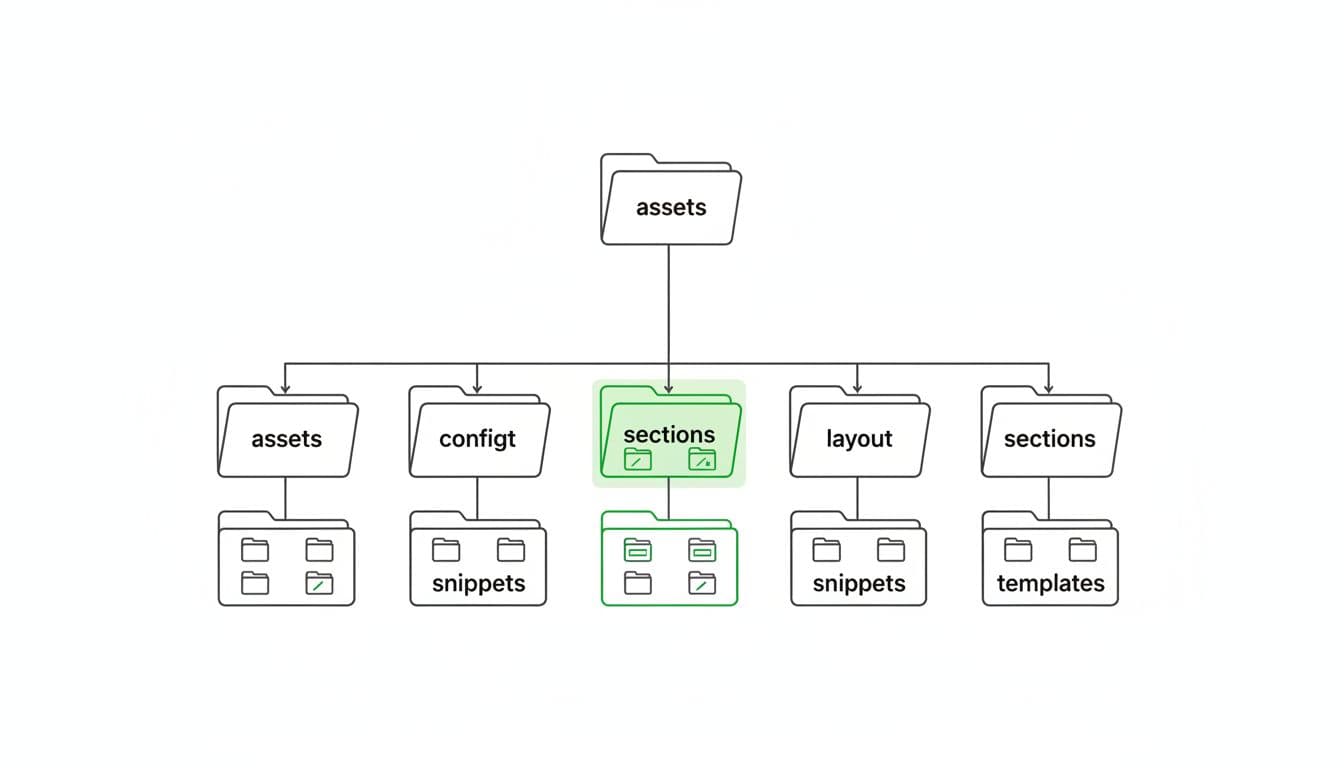
If your team needs a broader punch list, pair this audit with a focused guide like this technical SEO fixes checklist for Shopify stores, then prioritize only what impacts revenue.
Post-launch validation: accept or roll back (with clear thresholds)
After publishing, validate with real pages and real devices. A theme that “felt fast” in preview can slip once apps, tracking, and real content load in.
Set targets you can defend. These are practical thresholds many teams use in 2026:
| Metric | Target | How to verify |
|---|---|---|
| LCP | ≤ 2.5s | Lighthouse, PageSpeed |
| CLS | ≤ 0.1 | Lighthouse, PageSpeed |
| INP | ≤ 200ms | PageSpeed field data when available |
| Total page weight | Keep lean | DevTools Network, WebPageTest |
| Third-party scripts | Minimize | WebPageTest waterfall |
Also verify the unglamorous flows: search, filters, cart updates, discounts, and the full checkout path. Finally, confirm analytics events still fire (GA4, pixels, server-side tools) because theme swaps can break selectors and data layers.
Conclusion: a theme should earn the right to be customized
A theme isn’t “good” because it looks good. It’s good when it stays fast after apps, stays flexible after promos, and stays maintainable after months of changes. Run this Shopify theme audit in preview, score it honestly, then decide: buy, switch, or customize.
If your audit reveals heavy scripts, brittle templates, or hardcoded content, don’t patch forever. Sometimes the smartest move is a different theme.