


If your Shopify store feels slow, you’re not dealing with one problem. You’re dealing with a stack of small delays that add up, heavy images, theme code, app scripts, tracking tags, and checkout add-ons. Slow stores suffer in SEO rankings and see a higher bounce rate as shoppers quickly exit.
A professional Shopify Speed Audit doesn’t chase a single score, and it is the first step toward boosting your conversion rate. It finds what’s slowing real shoppers on real devices, then fixes the biggest bottleneck first. This guide gives you a 2026-ready workflow you can repeat every month, even when your app list changes.
Do this first, baseline with the right pages and the right data

Start by picking two URLs you’ll actually optimize. Selecting the right pages for testing is critical for your mobile speed optimization strategy. One should be a best-selling product page. The other should be your highest-traffic collection page. Homepages are useful, but they often hide the real issues because shoppers don’t always land there.
Next, lock onto the 2026 Core Web Vitals user-experience targets:
- LCP (Largest Contentful Paint): aim for 2.5 seconds or less
- INP (Interaction to Next Paint): aim for 200 ms or less
- CLS (Cumulative Layout Shift): aim for 0.1 or less
For Shopify context (what you can control, and what you can’t), keep a reference open like this Core Web Vitals for Shopify guide.
Here’s a concise “do this first” plan that avoids busywork:
- Compare real user metrics from Shopify Admin Dashboards with synthetic data to get a full picture.
- Capture a baseline in Chrome Incognito (mobile throttling on), then again on a real phone.
- Write down the LCP element (hero image, product image, headline block, etc.).
- Record one interaction that matters, Add to cart, open cart drawer, variant change, search.
- Save a clean test window (Preview theme link) so you can compare changes safely.
If you can’t name the LCP element and the slowest interaction, you’re not auditing yet. You’re just looking at numbers.
Use the waterfall to catch LCP blockers and layout shifts
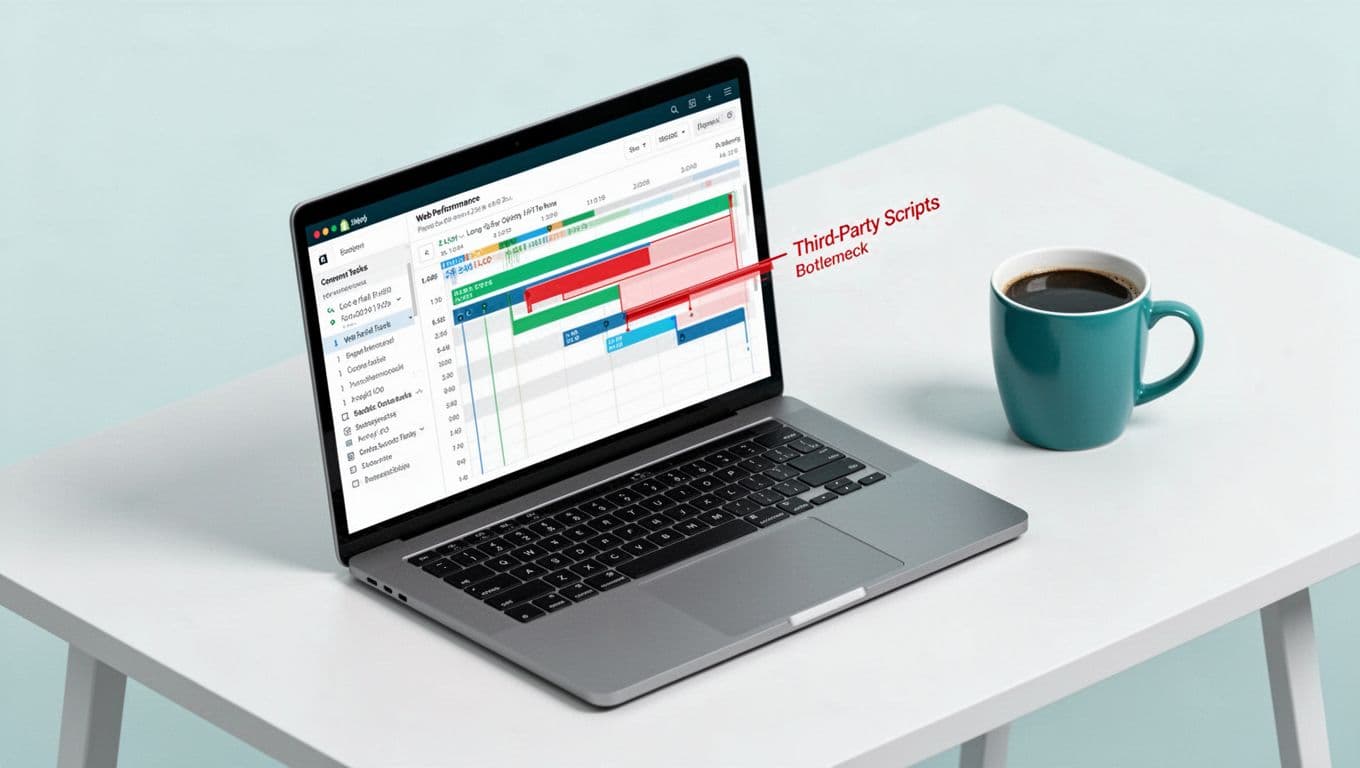
Open Chrome DevTools, run Google PageSpeed Insights or Lighthouse, then go deeper with the Network waterfall and Performance panel. The goal is simple: find what blocks rendering before the shopper sees the main content.
What to look for in the waterfall (quick, repeatable checks):
- Render-blocking CSS: big CSS files that load before anything meaningful paints.
- Render-blocking JavaScript: scripts that halt parsing and delay the first paint.
- Font delays: webfonts loading late, causing a flash and sometimes CLS.
- Third-party scripts loading early: reviews, chat, A/B testing, affiliate, heatmaps. While Shopify provides a robust global CDN, developers must still minimize third-party scripts to reduce the initial TTFB.
- Uncached or oversized images: the LCP image is often the “largest” for a reason.
Then confirm in the Performance trace. A common pattern is “nothing happens” while the main thread chews on JavaScript. You’ll see Long Tasks (often 50 ms+) stacked together, with style recalcs and layout work right after.
Decision rules that keep you focused:
- If LCP is an image, apply image compression and lazy loading, fix image format, dimensions, preload, and priority first.
- If LCP is text, you likely have CSS and font timing issues (critical CSS, font-display).
- If CLS spikes on product pages, reserve space for media, badges, and dynamic widgets.
Also remember Shopify constraints. You can’t rewrite Shopify’s edge stack, but you can avoid adding early blockers that slow every page. Practical fixes beat theoretical ones.
Diagnose script-induced INP (the “it feels laggy” problem)
INP is where many Shopify stores lose the most trust, particularly mature stores suffering from app bloat. A page can load “fast,” yet still feel sticky when someone taps a variant or opens the cart, hurting Add-to-cart rate and overall Conversion rate. INP measures that full interaction cycle, not just the initial input delay. For threshold guidance and common causes, this Core Web Vitals 2026 optimization guide is a solid reference.
To catch script-induced INP in a Shopify speed audit, run this simple test:
- Open DevTools, Performance, and hit record.
- Trigger one key interaction (Add to cart, variant change, filter).
- Stop recording and click the interaction marker.
- Inspect the main thread for long tasks tied to event handlers.
Patterns that usually point to apps or third parties, with excessive JavaScript execution on the main thread as the primary culprit for delays:
- Click handlers doing too much work (heavy DOM updates, synchronous network calls).
- Cart drawer scripts re-rendering the whole page section instead of small updates.
- Multiple trackers firing on the same interaction, each doing layout reads and writes.
- Consent banners re-checking state on every click.
A good fix for these laggy interactions often looks boring: fewer global scripts, less DOM churn, and delayed non-critical code until after the first interaction.
If you need fast ideas for where to start without a rebuild, this 60-minute Shopify speed audit workflow is useful for triage, even if your final fixes are more technical.
Fix safely: app removal testing, a troubleshooting table, and a monitoring plan
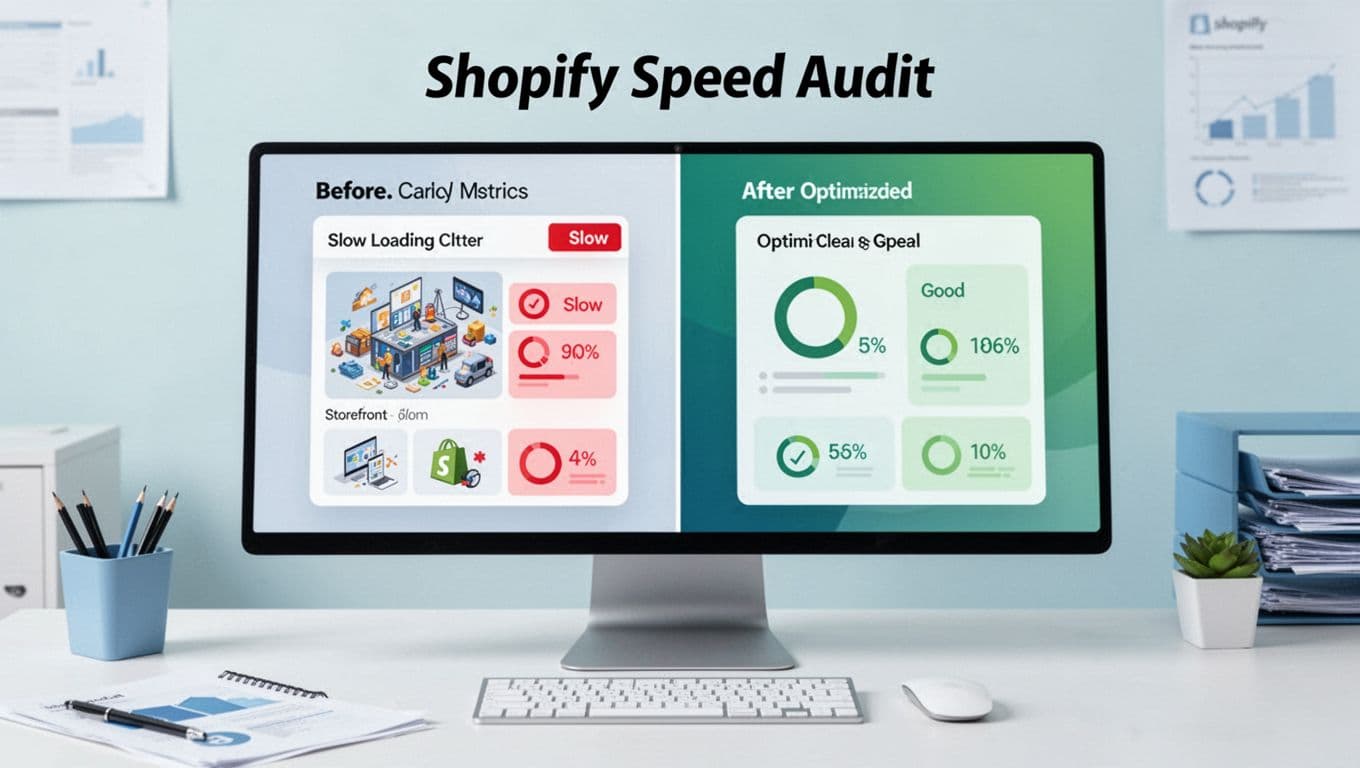
Speed work fails when teams “clean up” and accidentally break revenue tools. So treat removals like controlled experiments.
Safe script and app removal steps (low drama, high confidence):
- Duplicate the theme using Shopify CLI for local development and testing, then test changes in the duplicate first, as a clean theme architecture allows for easier Liquid code optimization without breaking features.
- Disable app embeds you don’t need globally (many apps inject site-wide by default).
- Remove one script at a time, then re-test the same two URLs and the same interaction.
- Check business-critical flows (add-to-cart, checkout start, promo codes, analytics events).
- Promote changes only after the baseline comparison looks better and QA is clean.
This table helps you map symptoms to likely causes before you touch code:
| Symptom you see | Most likely cause | What to confirm | First fix to try |
|---|---|---|---|
| LCP over 2.5s on product pages | Oversized hero or product media | LCP element is an image | Resize, compress, preload LCP image |
| LCP over 2.5s but LCP is text | CSS and fonts block first paint | Waterfall shows early CSS and late fonts | Inline critical CSS, adjust font loading |
| INP feels bad on add-to-cart | Cart drawer script and app listeners | Long tasks tied to click handler | Reduce cart re-render work, delay non-critical scripts |
| CLS spikes when page loads | Missing reserved space | Layout shift events around media/widgets | Set width/height, reserve slots for widgets |
| Mobile only feels slow | Too much JS on mid devices | Performance trace shows main thread busy | Remove global scripts, defer optional features |
| Collection filters lag | Facet scripts thrash the DOM | Repeated layout recalcs | Debounce handlers, reduce DOM writes |
| Checkout slowdowns affecting conversion rate | Bloated checkout scripts during Shopify Speed Audit | Conversion rate dips | Checkout optimization: trim embeds, defer extras |
Finally, don’t ship fixes and walk away. Validation and monitoring keeps the store fast as marketing adds new tags.
- Validate: re-test the same two URLs, plus one high-traffic landing page.
- Compare: check LCP, INP, CLS before and after, confirm no checkout regressions, and note improvements for better user experience and higher mobile speed optimization scores.
- Monitor weekly: track real user Core Web Vitals, and set an alert when a new script appears.
- Review UX too: speed improvements matter more when the journey is clear, see Core Web Vitals for better UX.
Conclusion
A 2026 Shopify speed audit, enhanced by AI-powered analysis in modern workflows, is less about tools and more about method. Baseline the right pages, use the waterfall to spot true blockers, then prove INP issues with real interactions. After that, fix one bottleneck at a time and validate like you’re protecting revenue, because you are. Keep a simple monitoring routine to maintain high Core Web Vitals scores, a continuous process for mobile speed optimization, and your speed gains won’t vanish the next time someone installs an app. These technical speed gains directly translate into improved SEO rankings, lower bounce rate, and higher conversion rate.