
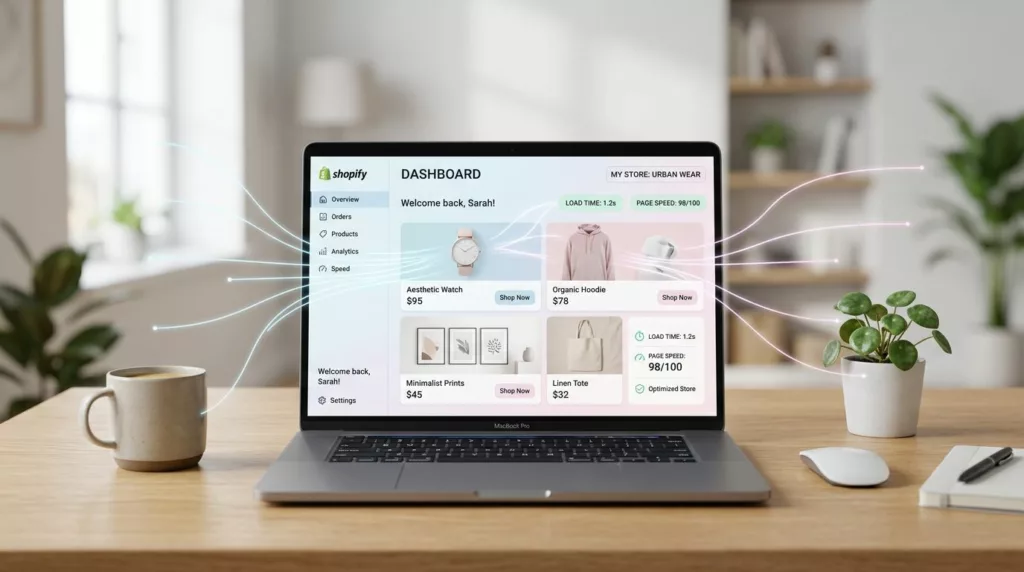

Ever notice how a collection page can feel “heavy” even when images are compressed? Fonts are often the quiet culprit. When a browser can’t paint key text until it fetches web fonts, your category grid and product details stall. That hurts Shopify font optimization, and it usually shows up as slower LCP, longer page load times, surprise layout shifts, and clunky taps on mobile.
The good news is you don’t need to ditch your brand typography. You just need to load fewer font bytes, load them earlier (but not too many), and keep text visible while custom fonts arrive. These fixes also boost your SEO performance.
How fonts affect LCP, CLS, and INP on collection and product templates
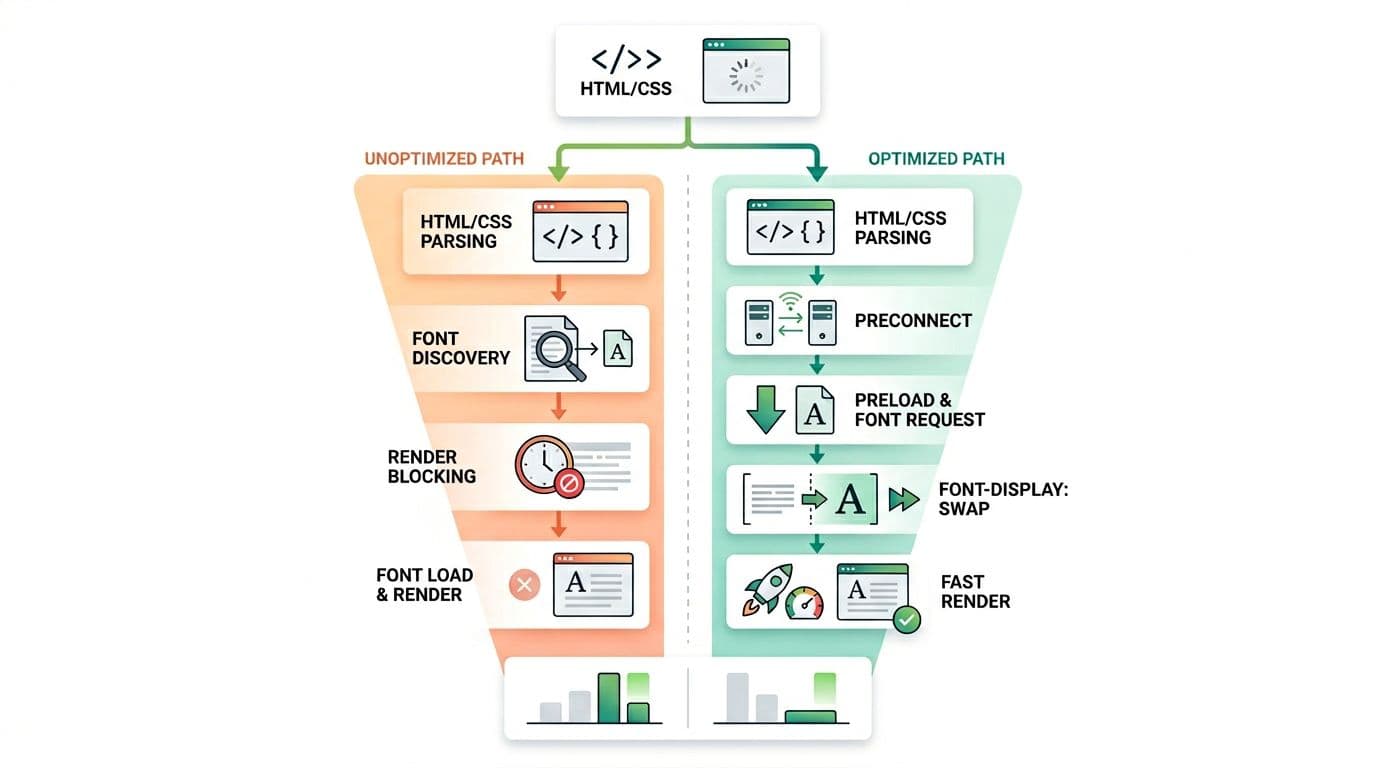
Illustration of the font request chain and a shorter optimized path, created with AI.
On collection pages, the LCP element is often the hero heading, collection title, or the first product card image. Fonts still matter because browsers may delay painting text until the font is ready (FOIT, which delays First Contentful Paint), or swap later (FOUT). Either way, your “first impression” slows down.
On product pages, font delays stack up fast. You’ve got a product title, price, variant labels, sticky add-to-cart, and review widgets. If your CSS references multiple weights and styles, the browser queues extra downloads right when the page should be rendering.
Here’s how fonts typically hit Core Web Vitals:
- LCP (Largest Contentful Paint) suffers when your main stylesheet blocks rendering and triggers font fetches late, or when you preload too many assets and starve the network.
- CLS (Cumulative Layout Shift) spikes when fallback text renders, then the custom font swaps in and changes line breaks. Headings are the usual offender, especially impacting mobile optimization for users on mobile devices.
- INP (Interaction to Next Paint) can degrade when the main thread is busy parsing extra CSS and handling third-party scripts, including apps that inject font stylesheets.
For a broader Shopify-specific Core Web Vitals view (including what you can and can’t control on Shopify’s platform), see this Core Web Vitals guide for Shopify.
If you only fix one thing first, make sure text renders immediately with a sensible fallback. Waiting on fonts is like holding your storefront sign behind a loading screen.
Theme-level Shopify font optimization that actually moves the needle
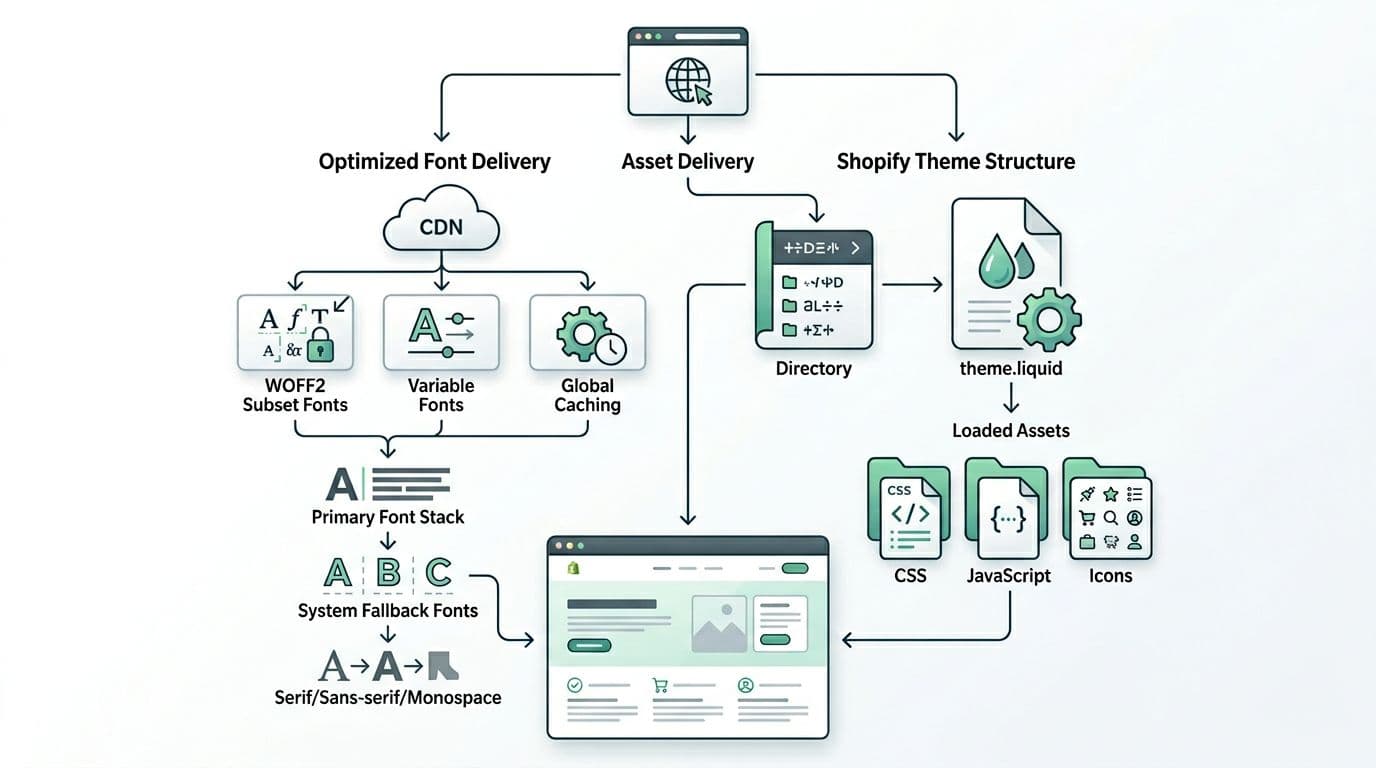
Diagram of a practical fallback stack and theme structure touchpoints, created with AI.
The fastest win is reducing how many font files the browser must download. Each weight and italic style is often a separate file. That adds requests, TLS overhead, and more time before the browser can settle the page.
Use fewer weights, or switch to variable fonts
If your design uses Regular, Medium, SemiBold, Bold, and Black, you’re paying for all of them. Most stores can get by with 2 weights (400 and 700). If you need nuance, a single variable font file often replaces 4 to 8 separate files.
Prefer self-host fonts in WOFF2 format (and drop legacy formats)
WOFF2 format is smaller and widely supported. If your theme loads fonts via a remote stylesheet (often Google Fonts), you add extra hops. Self-host fonts inside the Shopify theme assets folder, served via Shopify CDN, reduces that chain.
Add font-display: swap to stop invisible text
In your main CSS (or a typography CSS file), define an @font-face declaration with font-display: swap so the browser paints immediately:
/* assets/typography.css */
@font-face {
  font-family: 'BrandSans';
  src: url('{{ "BrandSans-Variable.woff2" | asset_url }}') format('woff2');
  font-weight: 100 900;
  font-style: normal;
  font-display: swap;
}
Then use a practical fallback font stack:
:root {
  --font-body: BrandSans, system fonts (-apple-system, BlinkMacSystemFont, "Segoe UI", Roboto, Arial, sans-serif);
  --font-heading: BrandSans, system fonts (-apple-system, BlinkMacSystemFont, "Segoe UI", Roboto, Arial, sans-serif);
}


body { font-family: var(--font-body); }
h1, h2, h3 { font-family: var(--font-heading); }
Preload only the fonts that affect above-the-fold content
Preloading helps LCP because it pulls key fonts forward in the queue. Still, too much preload backfires on mobile.
This quick table shows what usually works best for preload fonts:
| Page type | What to preload | What not to preload |
|---|---|---|
| Collection (category) | 1 primary font file used by the header and product grid | Italics, extra weights, secondary “accent” font |
| Product | 1 primary font file used by title, price, and primary buttons | Review widget fonts, icon fonts you don’t need above the fold |
Add preload tags in layout/theme.liquid inside <head>, and scope them to product and collection templates:
{%- if request.page_type == 'collection' or request.page_type == 'product' -%}
  <link rel="preload"
        href="{{ 'BrandSans-Variable.woff2' | asset_url }}"
        as="font"
        type="font/woff2"
        crossorigin>
{%- endif -%}
If you still load remote fonts, also consider a preconnect (only when needed):
<link rel="preconnect" href="https://fonts.gstatic.com" crossorigin>
For more background on how web fonts create render-blocking behavior and what patterns help, this deep dive is useful: how web fonts impact Shopify speed.
Common font-loading mistakes that slow Shopify stores
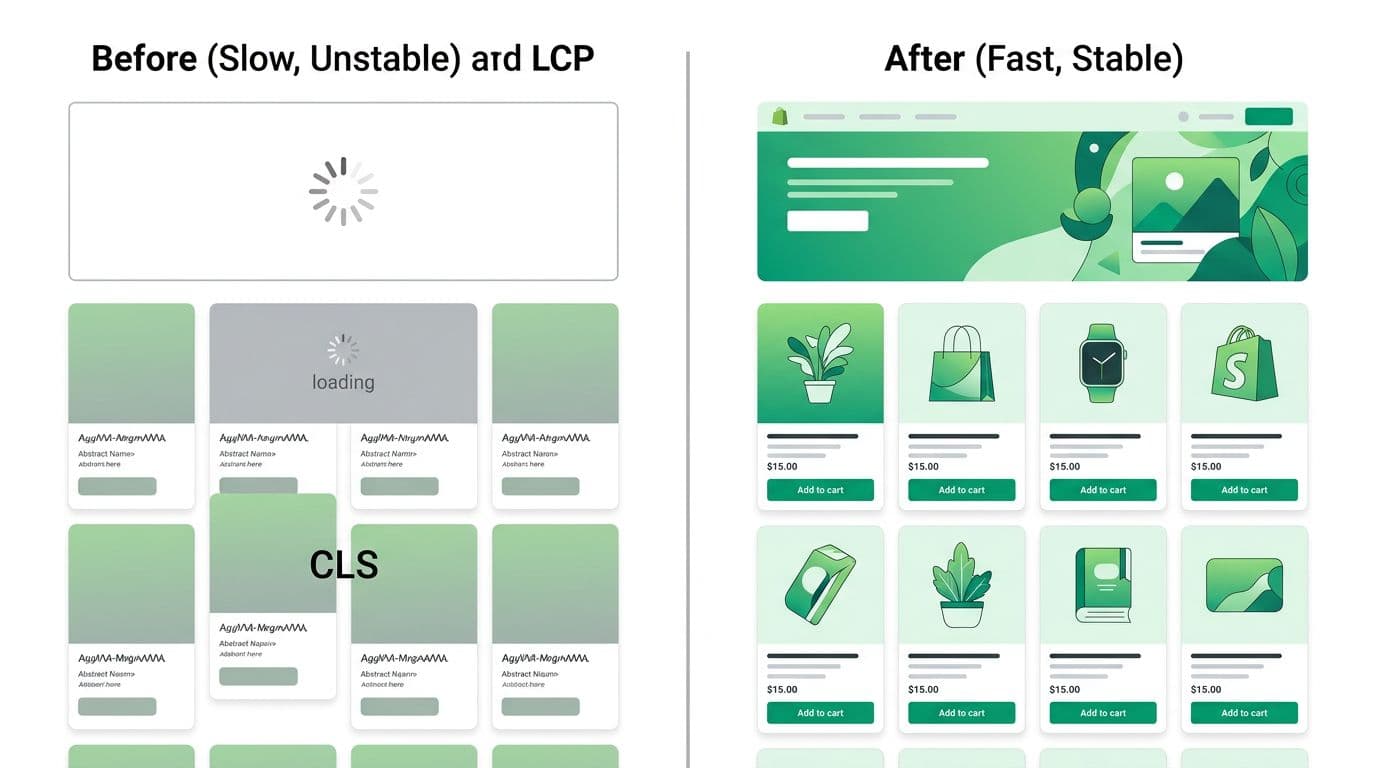
Before and after view of text visibility and layout stability, created with AI.
Most font problems aren’t “bad fonts.” They’re bad loading decisions that pile up over time.
Overusing weights and styles is the classic one. Every extra weight adds file size and download time, delaying LCP on slower connections. Trim font weights in the design system, prefer system fonts over heavy custom ones, then delete unused @font-face rules.
Preloading too many font files is another trap. Preload is a promise to the browser that something is urgent. Break that promise and you compete with images, critical CSS, and the first product card, especially with Google Fonts.
Apps injecting fonts globally can also wreck your work. Review, chat, page builder, and popup apps sometimes add their own font CSS to every page. Audit app embeds and disable anything not required on collection and product pages.
Render-blocking CSS happens when typography sits in a large stylesheet that loads late as render-blocking resources, or when you include multiple external CSS files before the main theme CSS. Keep font declarations early, and avoid remote font stylesheets when possible.
A simple do/don’t to keep teams aligned:
- Do keep body and heading fonts to one family when performance matters most.
- Do use font subsetting, font compression, and Unicode ranges when you only need Latin characters.
- Do tap the Shopify font library instead of manual uploads for common needs.
- Don’t ship icon fonts for a few icons, use SVG instead.
- Don’t load a “marketing” font on every template if it’s only used on the homepage.
- Do set
font-display: swapfor Google Fonts and custom loads.
How to confirm improvements (DevTools, Lighthouse, and real-user data)
Start with Chrome DevTools so you can see what changed, not just a Shopify speed score.
- In Network, filter by “Font”. Reload the collection page with cache disabled. Check how many font requests you see (including external ones like Google Fonts), their sizes, and whether they start early.
- In Performance, record a page load and click the LCP marker. Confirm the LCP element, then verify it isn’t waiting on late font downloads.
- In Elements, inspect your headings during load. If you see invisible text,
font-displayisn’t behaving as expected.
Then validate with field data. Google’s Core Web Vitals reporting in Search Console helps you confirm real-user improvements over time, boosting your SEO performance. For a broader 2026 Shopify performance checklist (fonts, unlike images which benefit from lazy loading; plus apps and theme choices), this guide is a solid reference: Shopify Core Web Vitals optimization in 2026.
Conclusion
Fast category and product pages need typography that loads like it belongs there, not like an add-on. Keep custom fonts small to minimize file size, keep weights minimal, and preload only what affects the first screen. Most importantly, Shopify font optimization should reduce requests while keeping text visible and layouts stable to boost Core Web Vitals. After you ship changes, verify in DevTools and watch real-user data to make sure your store feels faster where it counts.