

If your store feels “fine” on your laptop but customers still bounce on mobile, Core Web Vitals is usually the missing clue. In 2026, the targets are still straightforward: LCP under 2.5 seconds, INP under 200 ms, and CLS under 0.1 (at the 75th percentile of real users over 28 days). Understanding core web vitals ecommerce is essential for optimizing these metrics.
The hard part is that e-commerce pages are messy by nature. Big hero images, faceted navigation, personalization, A/B tests, reviews, chat widgets, and ad pixels all fight for the main thread. The good news is you can fix most issues with a disciplined process and a short, repeatable list.
In the realm of online shopping, mastering core web vitals ecommerce can significantly enhance user experience and conversion rates.
Measure the right way first (CrUX vs Lighthouse vs WebPageTest)
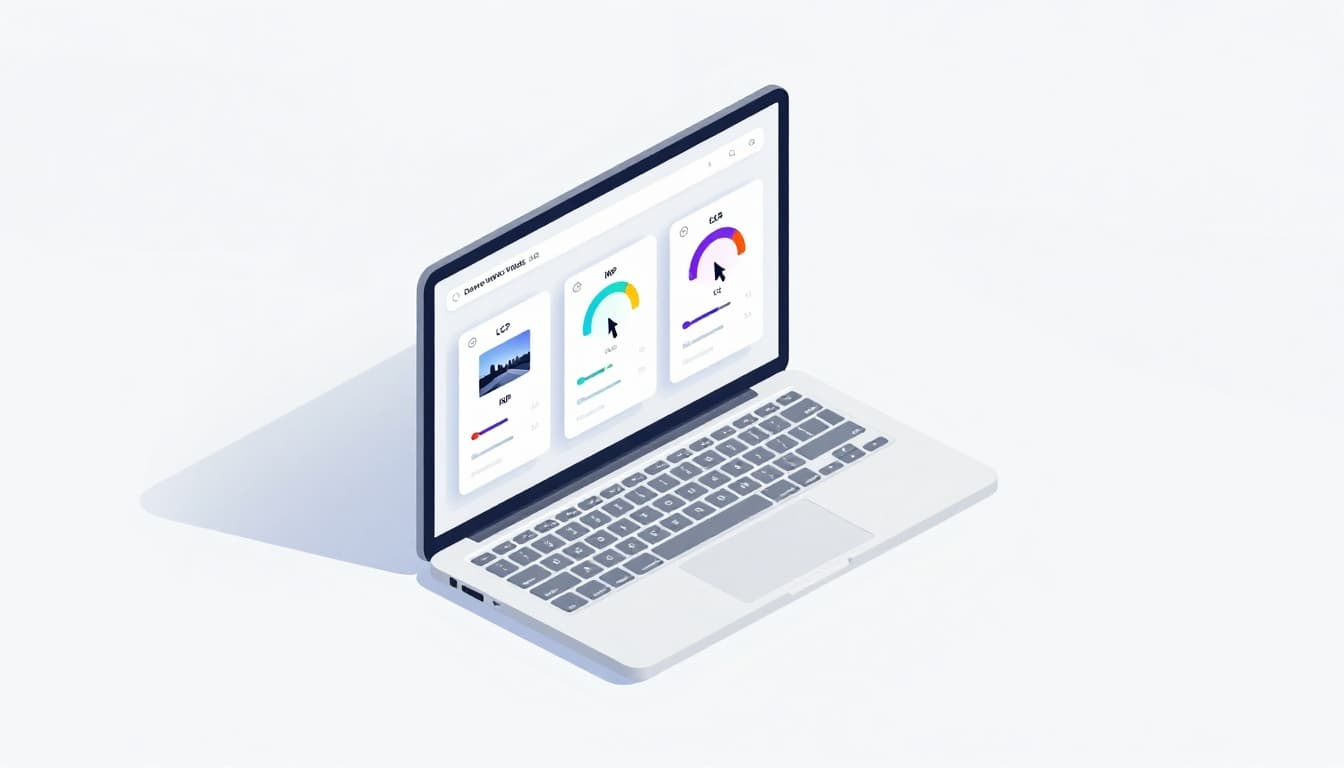
Start by separating field data from lab data, because they answer different questions.
CrUX (Chrome User Experience Report) style data, including what you see in Google Search Console, tells you what real shoppers experience. It’s the number that matters for pass rates, but it moves slowly because it’s a rolling 28-day window. Lighthouse is lab data. It’s perfect for quick debugging, but it can’t capture every real device, network, or third-party variation.
Use this workflow:
First, pick a small set of templates that print money: home page, top category page, top PDP, cart, and checkout. Next, segment by device. Mobile problems often hide behind a good desktop score.
Then, run triage in three tools:
- CrUX/Search Console: confirm which metric is failing and on which URL groups.
- Chrome DevTools Performance: record a real interaction (open filters, add to cart, change variant). Look for long tasks and layout shifts.
- WebPageTest: validate on a throttled mobile profile and compare first view vs repeat view.
Field data decides whether you pass, lab tools explain why you fail.
Finally, lock your baseline. Save Lighthouse reports, DevTools traces, and a WebPageTest result link for each template. That “before” set makes stakeholder conversations much easier after you ship changes. For broader platform context, the Shopify-focused walkthrough in Shopify Speed Optimization 2026 is a helpful reference for common storefront bottlenecks.
LCP fix list for storefronts (hero media, critical resources, and server time)
LCP is often your hero image or a big headline block. On e-commerce, the usual offenders are oversized images, late discovery of the LCP asset, render-blocking CSS, and slow server response.
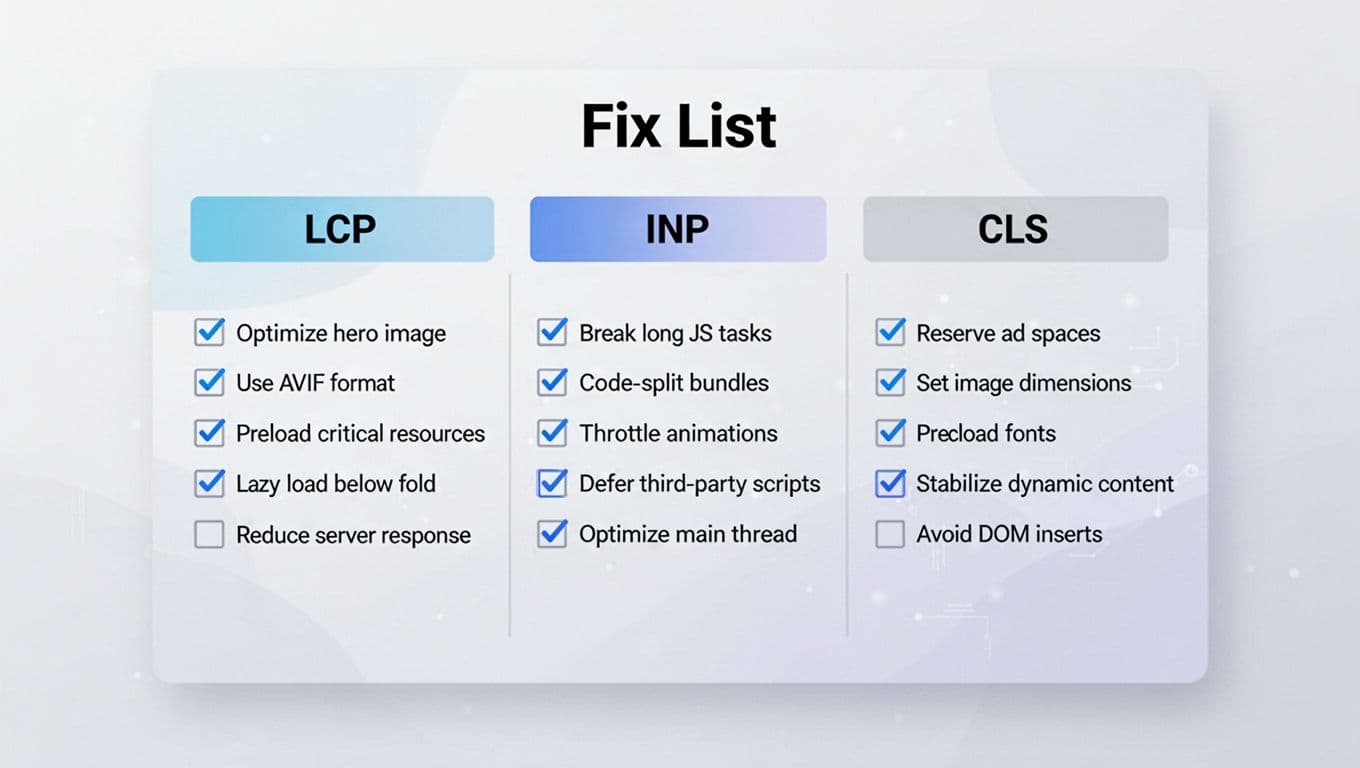
Use this step-by-step order so you don’t waste effort:
- Confirm the LCP element in DevTools (Performance panel) and Lighthouse. Don’t guess. On PDPs, it’s often the primary product image, not the banner.
- Fix the hero image pipeline: serve AVIF (or WebP when needed), use responsive sizes, and avoid shipping a 2500 px image into a 390 px slot.
- Preload the LCP resource (usually the hero image or critical font). Also set fetch priority so the browser treats it like revenue depends on it (because it does).
- Inline only truly critical CSS, then defer the rest. Big theme CSS files are common on Shopify, Magento, and WooCommerce builds with page builders.
- Reduce TTFB: cache HTML where you can, use a CDN, and watch edge cache hit rates during promotions. If the server starts slow, LCP can’t win.
- Delay below-the-fold features like “recently viewed,” heavy review widgets, and recommendation carousels until after the main content paints.
- Keep personalization lightweight on the first view. If you must personalize above the fold, render a stable default first, then enhance.
Verification: rerun Lighthouse on the same template, then confirm in WebPageTest that the LCP request starts earlier and finishes faster. After deployment, track the 28-day field trend and watch the 75th percentile move. If you want the UX angle tied to speed, the guide on Core Web Vitals for e-commerce UX success connects performance fixes to shopper behavior.
INP and CLS fixes that survive real shopping behavior (filters, tags, and campaigns)
INP problems show up when shoppers actually use your site: opening faceted filters, switching product variants, typing in search, or applying a promo code. CLS problems show up when the page can’t “hold its shape” while ads, widgets, and fonts arrive.
Step-by-step INP fixes (interaction responsiveness)
- Record real flows in DevTools Performance: open filters, quick-add to cart, change size, then close the cart drawer. INP is about the whole session, not one click.
- Break up long JavaScript tasks. If you see 200 ms to 1000 ms blocks on the main thread, split work with scheduling (and move heavy logic off the main thread when possible).
- Code-split by route and component. Category pages don’t need checkout scripts. PDPs don’t need the entire account area.
- Control third-party scripts (tag managers, heatmaps, affiliate pixels, A/B testing). Set rules: what loads on PDP, what waits until consent, what waits until idle.
- Tame UI “busywork”: debounce filter updates, avoid firing network calls on every keystroke, and reduce expensive re-renders in React/Vue components.
- Reduce DOM size on listing pages, especially with infinite scroll plus filters. Big grids with hundreds of nodes can slow every interaction.
- Re-test after app installs. On Shopify and WooCommerce, one new app can bring a 300 ms INP regression overnight.
For more platform-specific ideas, this breakdown of e-commerce speed patterns is a decent companion read: Core Web Vitals optimization for online stores.
Step-by-step CLS fixes (layout stability during merchandising)
- Set width and height on images and videos, including responsive sources. Use
aspect-ratioso the browser reserves space before media loads. - Reserve slots for dynamic blocks: “sale” badges, inventory messages, review stars, shipping countdowns, and personalization modules.
- Stabilize faceted navigation. Filter counts and filter pills often load late and push content down. Allocate space, then fill it.
- Handle ads and A/B tests carefully. Never inject a new banner above the fold without reserving room. Merch teams love surprise banners, CLS hates them.
- Fix font shifts: preload key fonts and use a fallback with similar metrics. Otherwise, text reflows after the font swap.
- Avoid inserting DOM above existing content after render. If you must, insert below the fold or into reserved containers.
If faceted navigation is part of your problem, the practical URL and filter governance guidance in Magento category SEO audit for 2026 maps well to performance too, because filter sprawl often means heavier templates and more scripts.
A monitoring plan that prevents regressions during launches
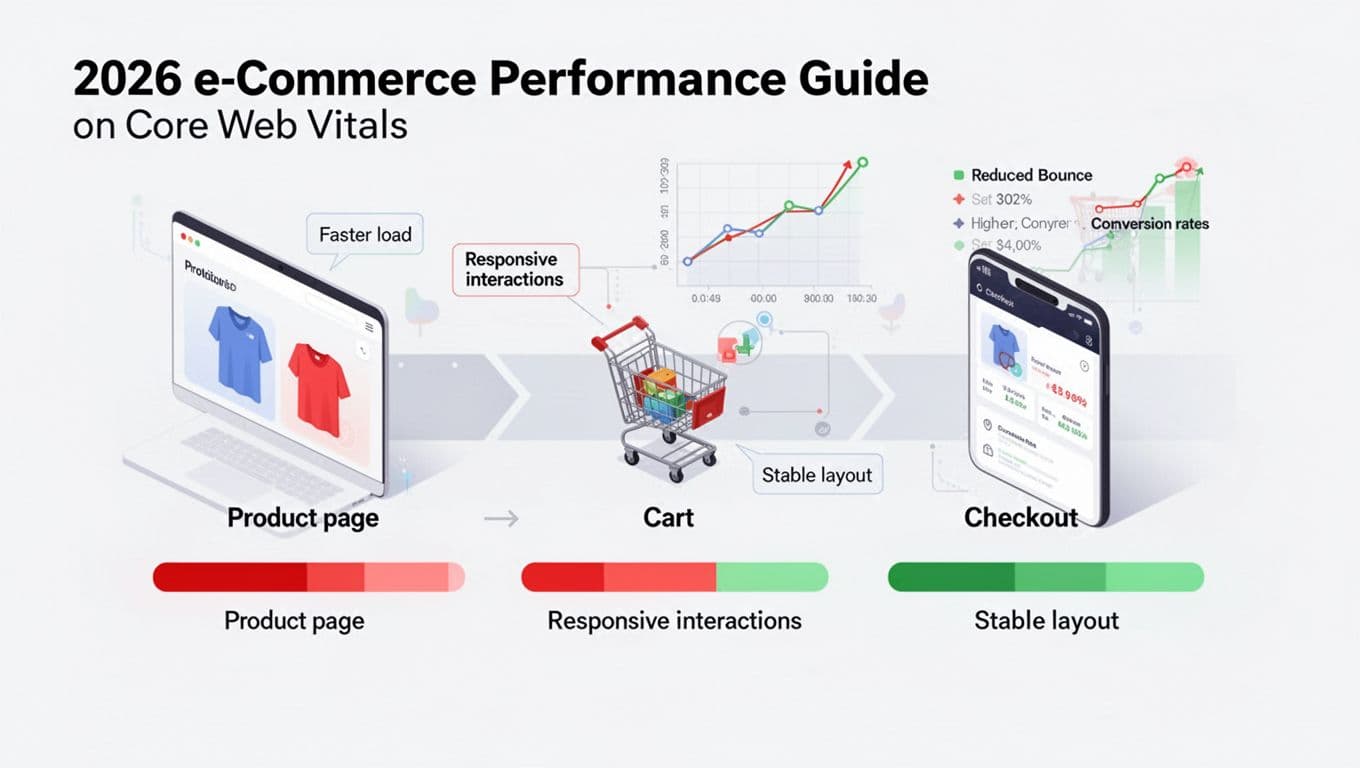
Campaigns are where core web vitals ecommerce work often falls apart. A new hero video, a new tag, or a last-minute upsell widget can erase months of progress.
Use a simple cadence like this:
| What to monitor | When | What “good” looks like |
|---|---|---|
| Template Lighthouse checks | Every release | No regressions on LCP, INP proxy signals, CLS |
| WebPageTest for top templates | Weekly (daily during promos) | LCP asset starts early, no new long tasks |
| Field trend (Search Console/CrUX) | Weekly | 75th percentile moving toward targets |
Also set performance budgets in your release process (JS KB limits, image weight ceilings, max third-party tags per template). Tie exceptions to approvals. Without governance, speed loses to “just one more script” every time.
Conclusion
Core Web Vitals fixes stick when you treat them like product work, not a one-off cleanup. Measure with field and lab tools, fix LCP at the source (hero and critical path), then protect INP and CLS from third-party tags and merchandising surprises. Once the process is in place, core web vitals ecommerce becomes a steady practice instead of a fire drill.